
Hello Wwizards and Wwitches!
This tutorial is designed to provide a comprehensive, step-by-step guide for setting up The Witcher 3 REDkit modding tool alongside its Wwise Project. It consolidates information from The Witcher 3 REDkit documentation, while also addressing some undocumented steps that are essential for a smooth setup.
In order to get the project up and running, we need to:
- Install the necessary software
- Get the Wwise project from the built game
- Get the Wwise license (from your Customer Profile at audiokinetic.com)
- Convert the audio files format to be recognizable in Wwise
Before proceeding, ensure that you have at least 230 GB of free storage space available. This will be needed to accommodate both the required programs and the extracted game mod files.
Whether you’re an experienced user or new to Wwise, this tutorial is structured to be clear, concise, and straight to the point. For additional explanations you can check out my detailed video tutorial on YouTube:
Necessary software
- In case you don’t have the game, it’s available to buy on Steam, Epic or GOG (as far as I know, those are the stores where its being sold). Because it’s a game from 2015, offers are abundant and you can get it at a very accessible price.
- Once you have the game, you’ll need to download The Witcher 3 REDkit, which is a free modding tool that allows you to customize and expand The Witcher 3: Wild Hunt. This is needed in order to get the Wwise project.
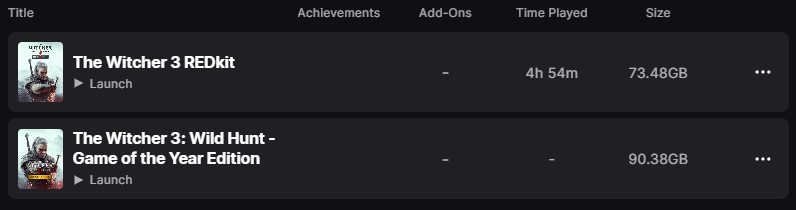
(game and modding tool installed)
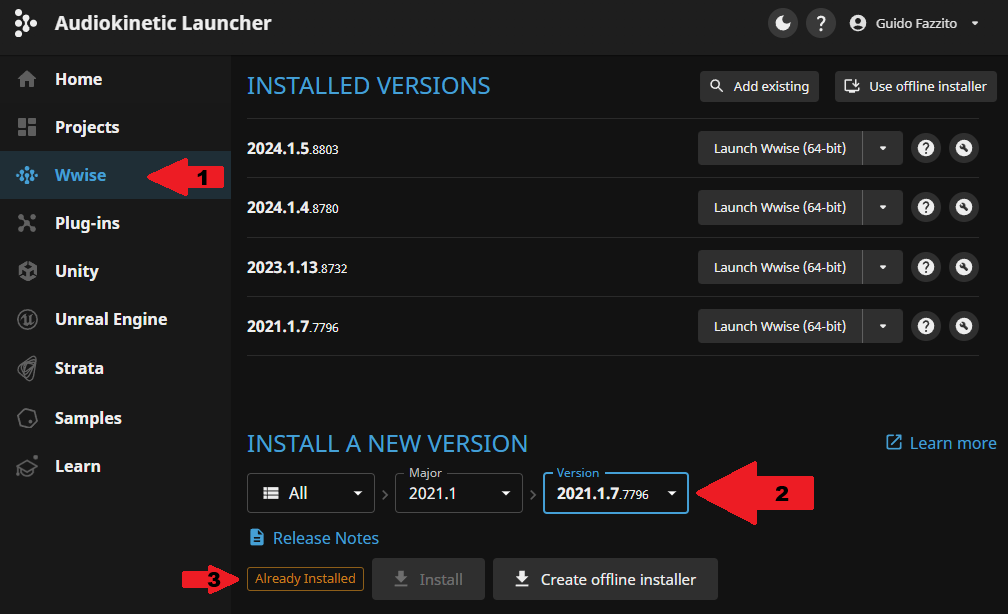
- Download Wwise version 2021.1.7.7796. In the Audiokinetic Launcher, head over to Wwise → All → 2021.1 → 2021.1.7.7796. Then click install (if you already installed it, an “Already installed” tag should appear).
- Download the ffmpeg command line tool to convert the Wwise multimedia files (more of this later).
Getting the Wwise project from the built game
Open The Witcher 3 REDkit. A window similar to the one below will appear.
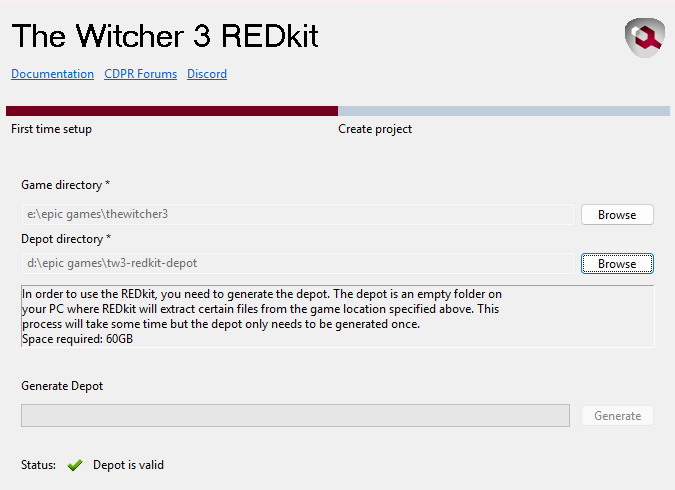
Browse and select a path:
- Game directory → The current location where TW3 is installed
- Depot directory → An empty folder to put the depot
But what is a depot? As the official REDKit Setup Guide says :
“A depot is the place where all the “uncooked” game files - which you will be able to start working with - are kept. In video games, large numbers of files are usually merged (compressed) into a smaller number of bigger files so the user doesn’t see every single file that makes up the game. You can think about uncooking is basically “unpacking”.”
Cool! Knowing that, click on “Generate”. Wait around 30 min for the process to finish.
If the status shows “invalid”, check if the game directory path is correct and if the depot path is empty.
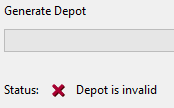
(Houston, we have a problem…)
Getting the Wwise License
Now you’ll need to get a Wwise License to be able to generate SoundBanks with all the project’s assets and plug-ins used.
To do so, on the Audiokinetic page, sign in to your Customer Profile and then go to the Wwise Modding Projects page, scroll to “Witcher 3 - REDKit Modding” and request access.
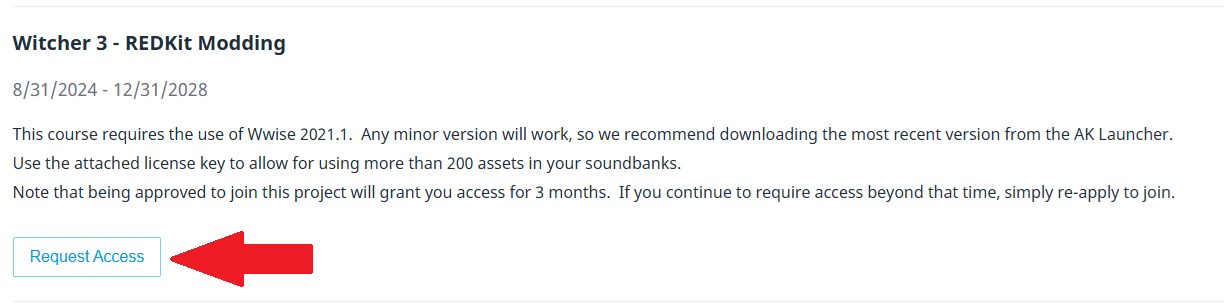
Another window will pop up. Accept the License Agreements and confirm the licence request.
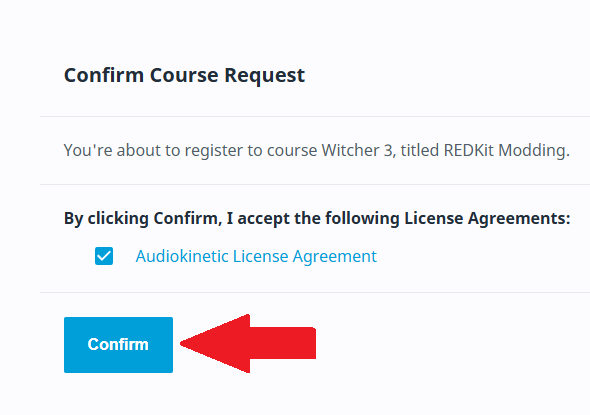
If everything’s good, a Witcher 3 modding licence should be approved relatively quickly. You can check it in your account → My projects.

There, you should see something like this:
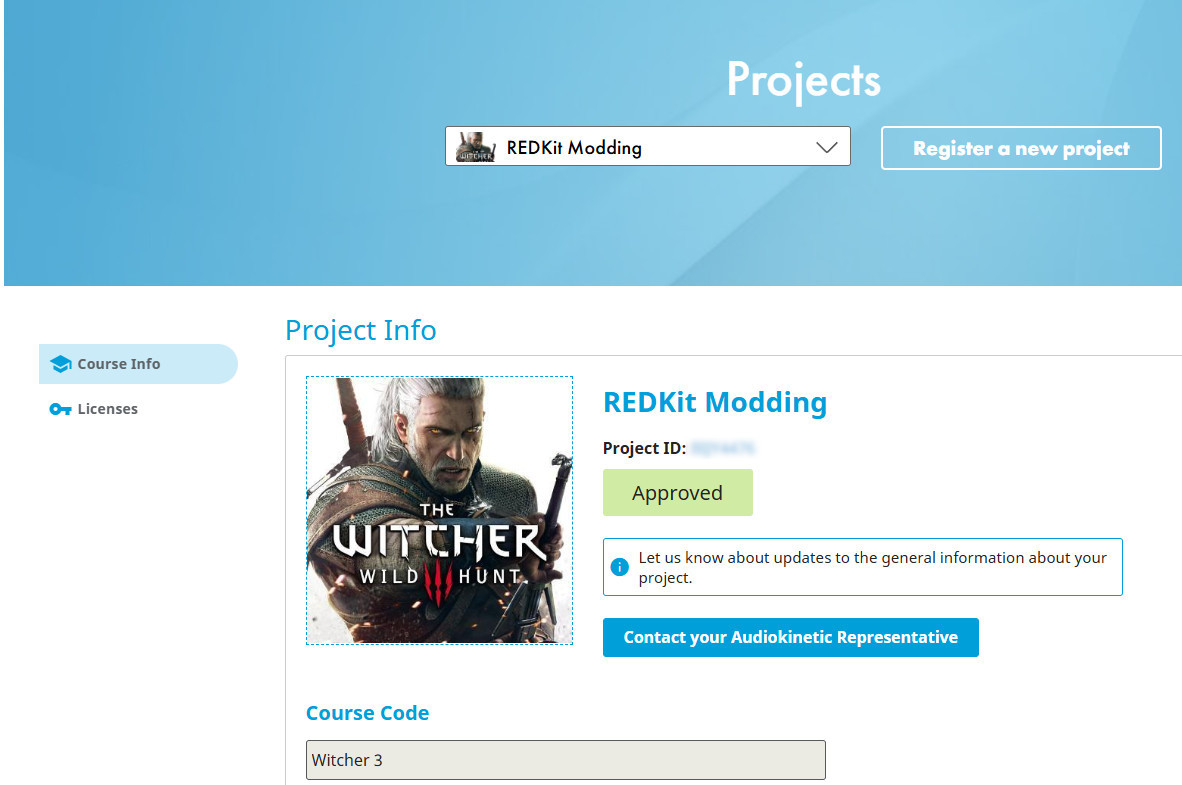
That means the license has been approved, great! Now go to the Audiokinetic Launcher. Go into Licenses → Get License Key and copy it.
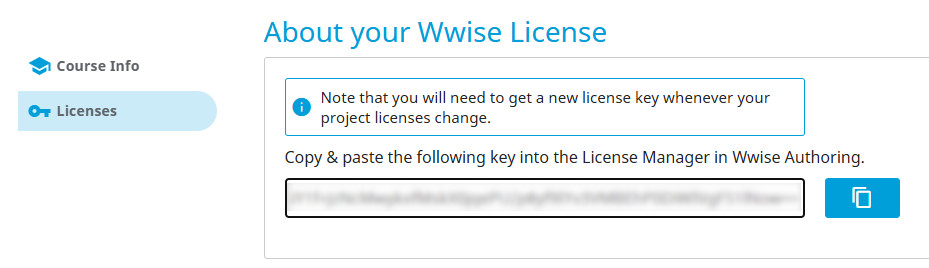
In the Audiokinetic Launcher, head over to Projects → Open Other. The Wwise project should be located in:
Path_Where_Is_Located\TheWitcher3REDkit\assets\w3_audio
(Which in my case will be: “D:\Epic Games\TheWitcher3REDkit\assets\w3_audio”)

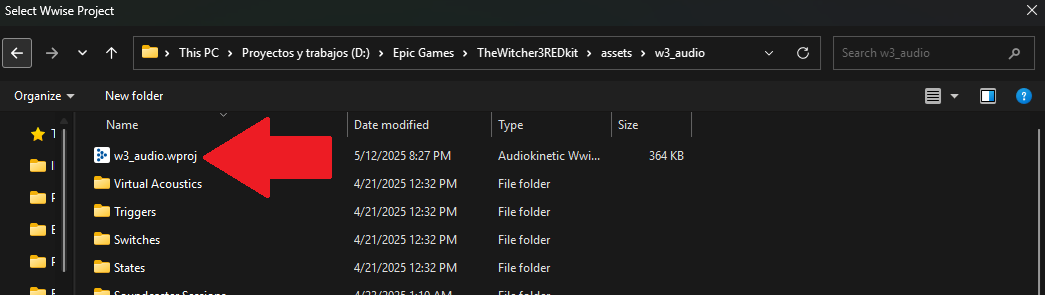
Once the project is loaded, it may ask you to accept some terms and conditions. Accept them, then go to Project → License Manager and paste the license.
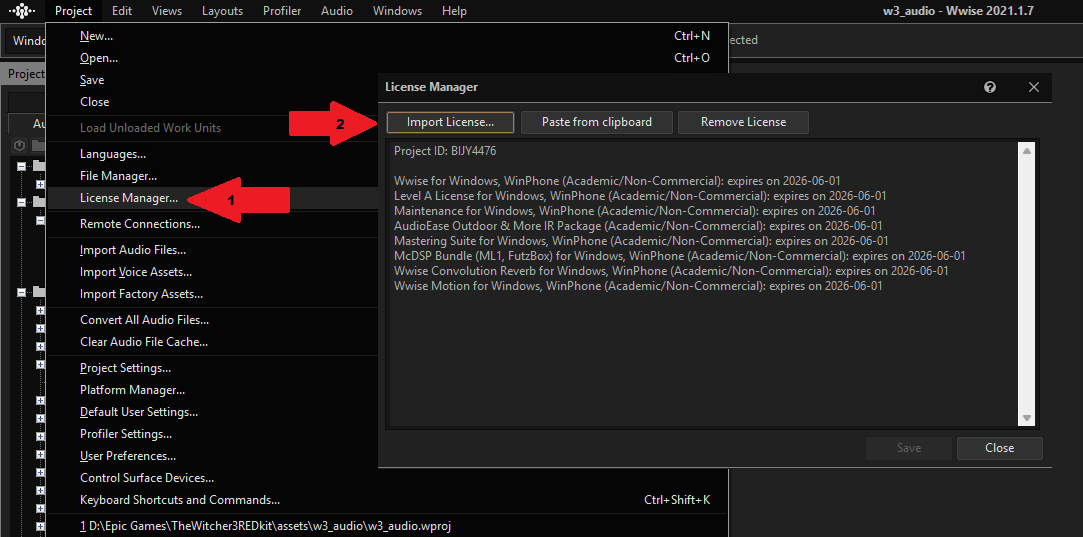
The Wwise project is ready! You can check that the project also appears on the Project section of the Launcher.

Converting the audio files format
The extracted audio files from the mod tool are as .opus type, which is a problem as Wwise only accepts .wav files.
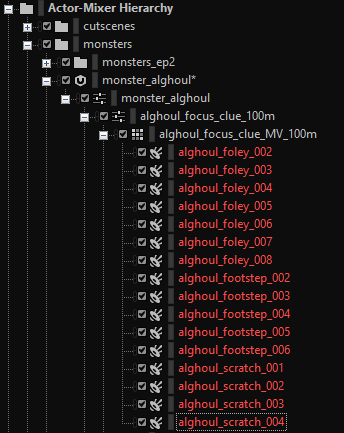
(Wwise does not recognize .opus files)
For that, extract the downloaded ffmpeg tool. Then copy the “ffmpeg.exe” file located in the “bin” folder and paste it into the “Originals” Wwise project folder.
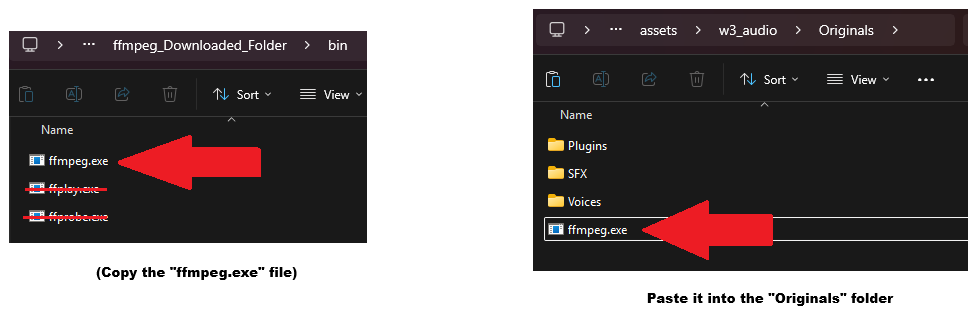
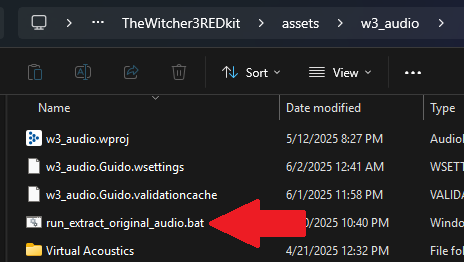
The last step is to execute the “run_extract_original_audio.bat” file in the project folder. This will convert all the audio files from .opus to .wav format.
That’s it! You should have the project fully set up.
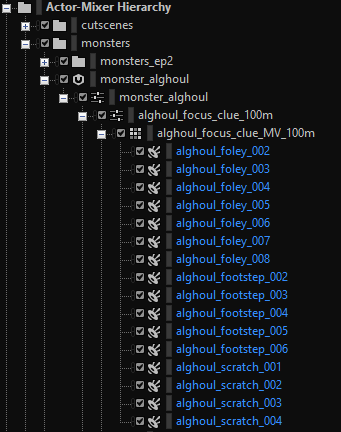
(all the Sound SFX objects are blue!)
Where to go now?
Now that the project is ready, you can explore it and gain insight on how a AAA game is structured. If you find it a bit overwhelming or difficult, I can make a second part where we’ll take a deep dive into the Sound and Music systems implemented!
If you get stuck, remember that the modding community is a valuable resource. Forums, documentation, and online discussions can provide additional insights to help troubleshoot issues and refine your approach (like The Official Witcher Discord).
That’s it for this post folks, happy implementation!



댓글