- Cube
Wwise uses “Action” Events to apply specific Actions to the different sound, music, and motion structures within your project hierarchy. In a typical game, you could have hundreds of these Events, so it is crucial for you to be able to find the ones you are looking for quickly. You can use the sorting and filter tools in the Event Viewer to find the different Events that have been created for the current project.
To open the Event Viewer:
From the menu bar, click Views > Utilities > Event Viewer and then select a new pinned view (Shift+V) or a selection channel. For details on Selection Channels, see Understanding Selection Channels and Meter Instances.
![[Note]](/images/2025.1.4_9062/?source=Help&id=note.png)
Note You can have multiple instances of the Event Viewer open at the same time within the same layout.
The Event Viewer has three different tabs, each of which filters the Events in a different way:
Filtered tab - Displays all Events alphabetically. You can also sort this list by Action type using the Show All: Sorted option, or filter the list to display only those Events that contain a particular Action type. You can navigate through the filtered Events by clicking the plus (+) and minus (-) signs to expand and collapse the folders.


Event Viewer filtered by action type "Play".
Current Selection tab - Displays a list of Events that are associated with the object or objects that are currently selected in the Audio tab of the Project Explorer.
Orphans tab - Displays orphaned Events or Events that have been created, but are not currently associated with a particular object.
You can also delete Events, open the Event Editor, as well as drag and drop one or more Events from the Event Viewer to other views within Wwise such as the Soundcaster or SoundBank Editor.
| Note |
|---|---|
Dialogue Events are not displayed in the Event Viewer. Dialogue Events can be viewed on the Events tab of the Project Explorer. |
Depending on the situation or your own personal preference, you may want to change the display of the Event Viewer. For example, you can expand or collapse all groupings, or have the Event Viewer automatically expand every grouping each time the list is filtered or sorted.
To change the Event Viewer display:
Right-click one of the group headings in the Event Viewer.
A shortcut menu appears.
Select one of the following options:
Auto Expand to automatically expand every grouping each time the list is filtered or sorted.
Expand All to expand all category and type groupings.
Collapse All to collapse all category and type groupings.
By default, the Event Viewer displays the Filtered tab where all the Events in your project are listed in alphabetical order. To find specific Events more quickly, you can select the Show All - Sorted filter, which sorts Events by Event Action. This means that all the Play Actions are grouped together, all the Stop Actions are grouped together, and so on.
To sort the Event list:
In the Event Viewer, click the Filtered tab.
By default, all Events are listed alphabetically.
Click the Filter button to display the filter and sorting options.
Click the Show All - Sorted option.
All the Events in your project are sorted by Action category and then Action type.
You can filter the Event list by Action type. For example, you can filter the list to show only the Stop All Actions, or only the Mute Actions.
To filter the Event list by Action type:
In the Event Viewer, click the Filtered tab.
By default, all Events are listed alphabetically.
Click the Filter button to display the filter and sorting options.
Select an action category and then click an Action type from the list.
The Events are filtered according to the filter option you selected.
You can filter the list to find specific Events that are associated with one or more objects selected in the Audio tab of the Project Explorer.
To filter the Event list by current selection:
In the Audio tab of the Project Explorer, select one or more objects.
In the Event Viewer, click the Current Selection tab.
The Events associated with the selected objects are displayed in the Events list.
| Note |
|---|---|
If more than one object is selected in the Audio tab of the Project Explorer, the Events are sorted by object. |
You can filter the list to find orphaned Events, which are Events that contain Actions that are not associated with any object. The title of the Orphans tab contains a number in brackets that specifies the total number of orphaned Events in your project.
To filter the Event list by orphaned Events:
In the Event Viewer, click the Orphans tab.
The orphaned Events are displayed in the Events list.
The information in the Event Viewer can be displayed in many different ways depending on how you have sorted or filtered the Event list. Some filter and sorting options create levels within the Event Viewer. To navigate through the different levels, you can expand and collapse the groups by clicking the plus (+) and minus (-) signs beside each Action category and type.
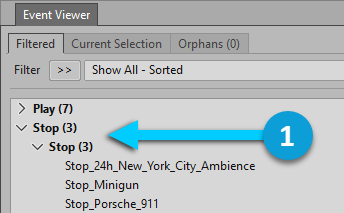
For example, to view a Stop Action when Show All - Sorted is the selected Filter, you must do the following:
|
|
Expand the Stop Action category and a Stop Action type grouping to display the different Events. |
You can also use the following keyboard shortcuts to quickly navigate through the different levels in the Event Viewer.
|
Keyboard Shortcut |
To |
|---|---|
|
Up arrow |
Move up within the Event list. |
|
Down arrow |
Move down within the Event list. |
|
Right arrow |
Expand an Event Action category or type grouping. |
|
Left arrow |
Collapse an Event Action category or type grouping. |
Cette page a-t-elle été utile ?
Besoin d'aide ?
Des questions ? Des problèmes ? Besoin de plus d'informations ? Contactez-nous, nous pouvons vous aider !
Visitez notre page d'AideDécrivez-nous de votre projet. Nous sommes là pour vous aider.
Enregistrez votre projet et nous vous aiderons à démarrer sans aucune obligation !
Partir du bon pied avec Wwise