
Early in pre-production, sound designers need to prototype many systems, and they don’t always have an audio programmer to help them.
Fortunately, Wwise, combined with today's engines like Unreal Engine 4 and Unity 3D, is really helpful for that.
Unreal Engine 4 has, for example, a powerful scripting interface which allows sound designers to do many things without the need for a programmer’s involvement. And combined with powerful behaviors that Wwise offers, it would be a shame to not take advantage of these great tools!
That said, this tutorial will explain how to detect/manage ground materials and play the appropriate footstep sounds.
It has been made with, and will mainly focus on:
- Audiokinetic's Wwise 2016.1: Switch Group, RTPC, Switch controlled by RTPC, and Random Containers
- Unreal Engine 4.12.5: Blueprint, Surface & Physical Materials, AkEvent Notify, Set Switch, and Set RTPC
- Unity 3D 5.1
- Free Assets from both the Unreal and Unity store.
Wwise
The setup is strictly identical for Unreal and Unity to be able to play footsteps according to the different ground materials detected by the engine.
Game Syncs
- Create a new Switch Group in Game Syncs and name it Material.
- Create 4 Switches under the Switch Group and name them Concrete, Grass, Tiles, andWood.
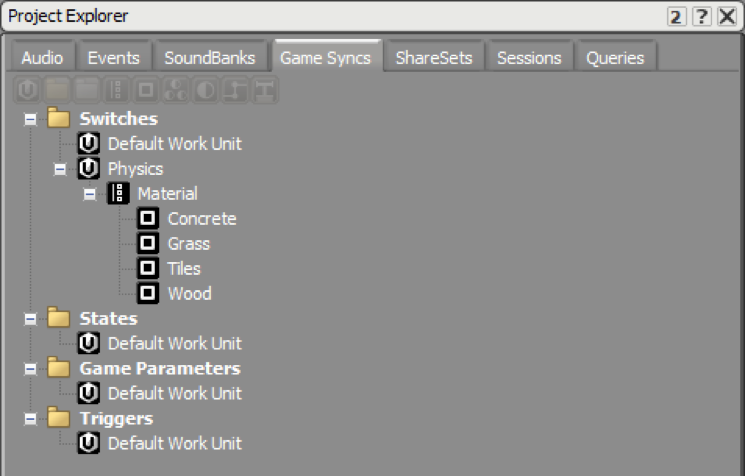 Keep in mind that a Switch is “game object based”, which means it can be used for different situations and not only for player footsteps. It can have different values depending on which game object is used, such as bullet impacts and NPC footsteps. This means that a State, which is “global” must not be used to manage physical material.
Global Setup (Audio / Events / Switch Assignation)
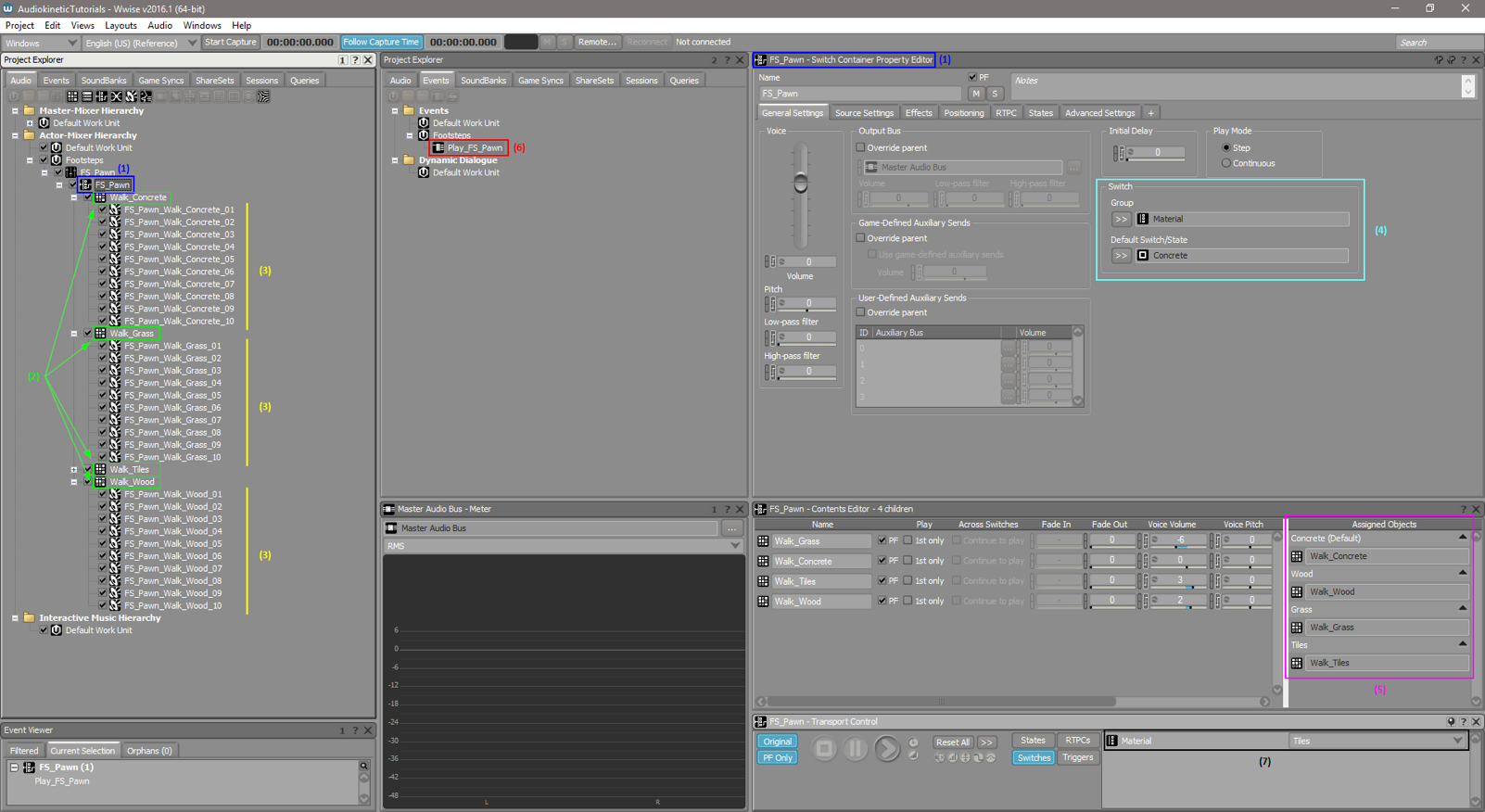
- (1) Create a new Switch Container and name it FS_Pawn.
- (2) Create 4 Random Containers for each Material: Walk_Concrete, Walk_Grass, Walk_Tiles, and Walk_Wood.
- (3) Import all audio files according to these containers and materials.
- (4) Click on the Switch Container and set the Switch created before:
Group: Material
Default Switch/State: Concrete
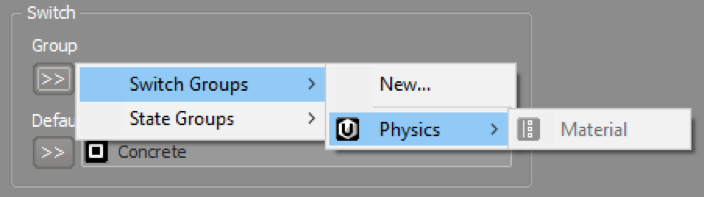
Concrete by default (if set to none, nothing will be played).
- (5) Now in Assigned Objects drag’n’drop each Random Container from the Contents Editor (or Project Explorer) to their respective Switches.
- (6) Create a New Event Play from the Switch Container FS_Pawn and name it Play_FS_Pawn.
- (7) You can test your Event and switch the Material in the Transport Control or in a Soundcaster Session.
Unreal Engine 4
Project Settings
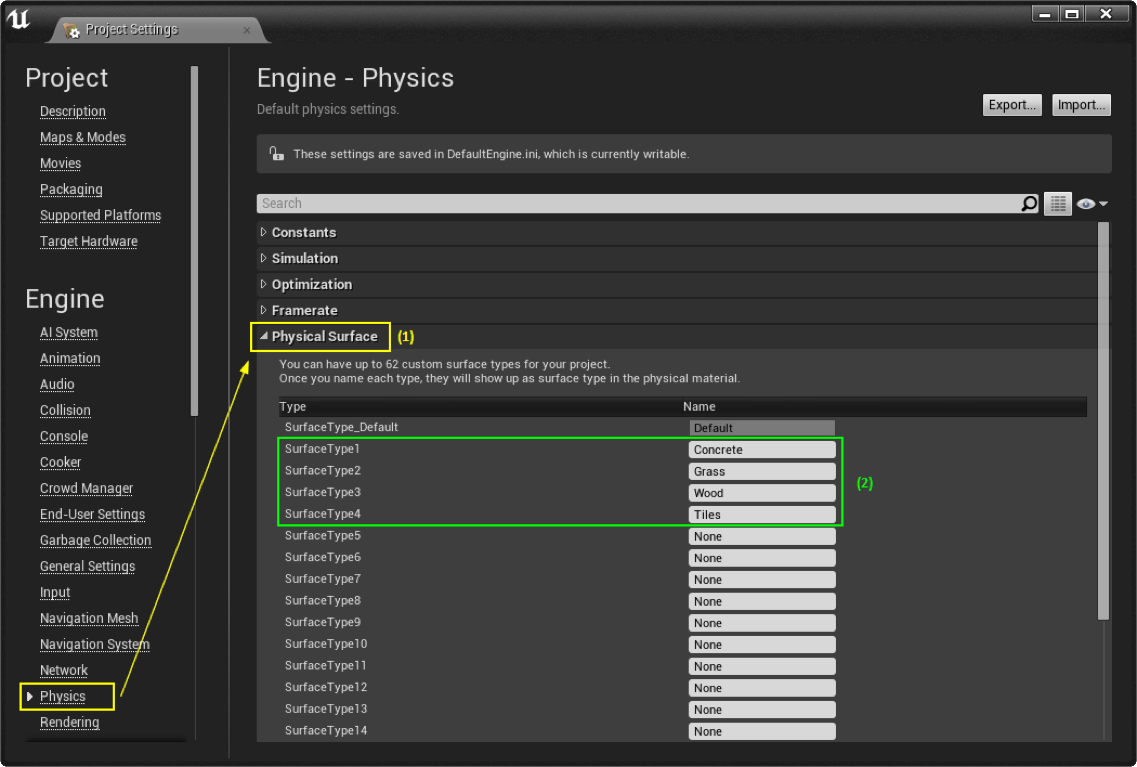
- (1) Open the Project Settings and go to Engine>Physics>Physical Surface.
- (2) Add 4 new Surface Types (with the same names as created in Wwise): Concrete, Grass, Wood, and Tiles.
Physical Material Settings
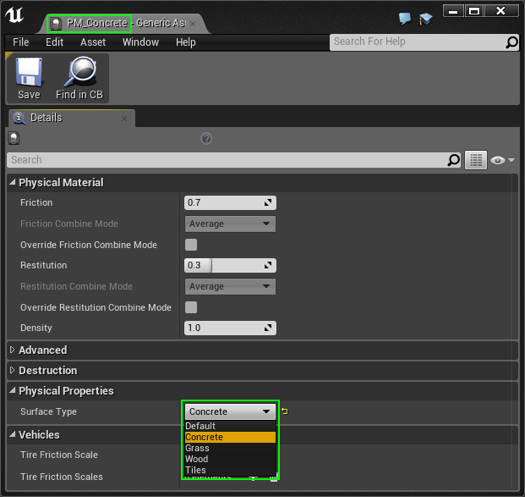
- (1) Create 4 new Physical Materials in the content browser and name them PM_Concrete, PM_Grass, PM_Tiles, andPM_Wood.

- (2) Open each of them and assign the corresponding Surface Type.
Material Settings
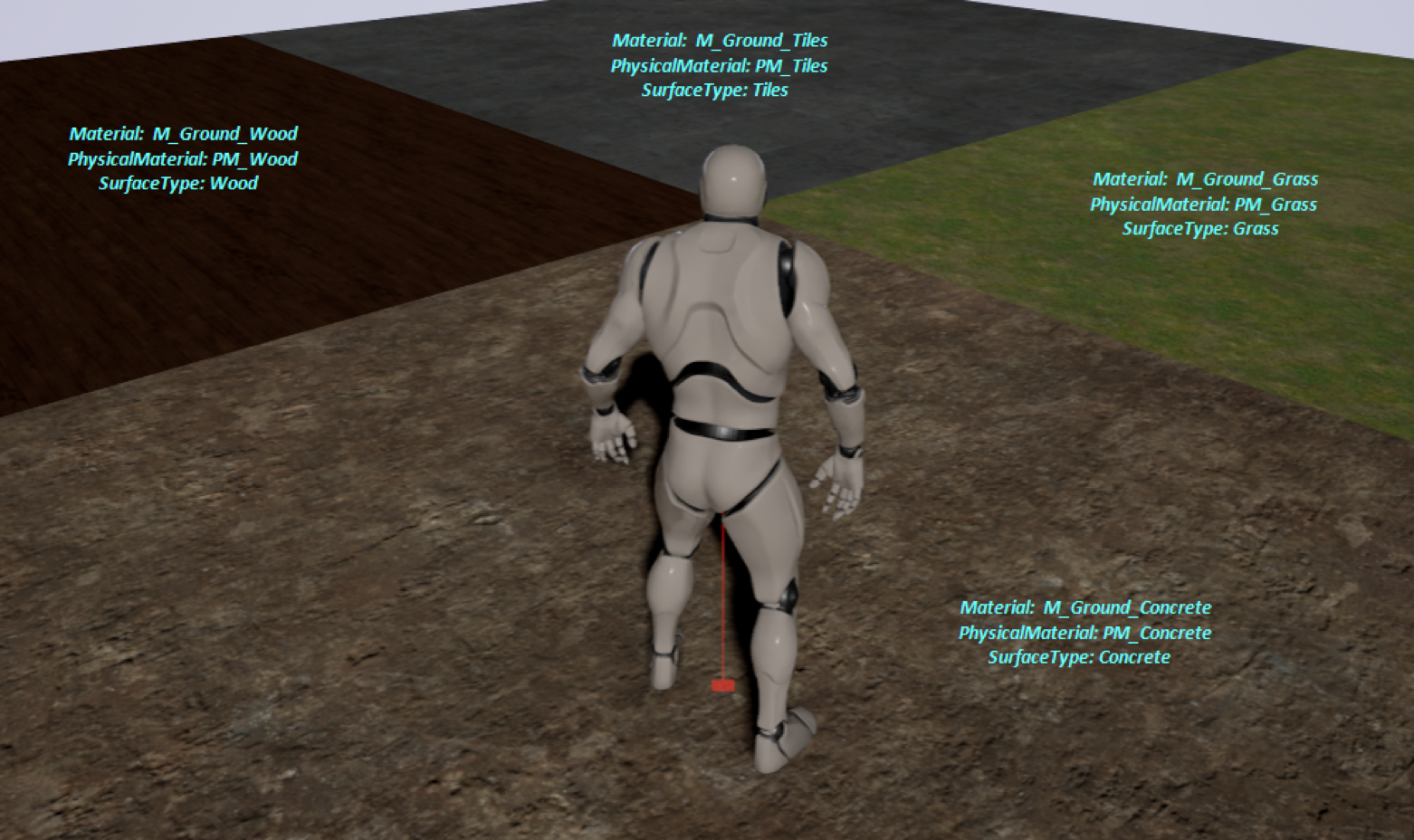
- Open each Material used in your map and set the correct Physical Material for each of them: PM_Concrete, PM_Grass, PM_Tiles, and PM_Wood.

- Map Overview
Animation Sequence
- Open the Animation Sequence. This is where we are going to trigger the AkEvent footstep.
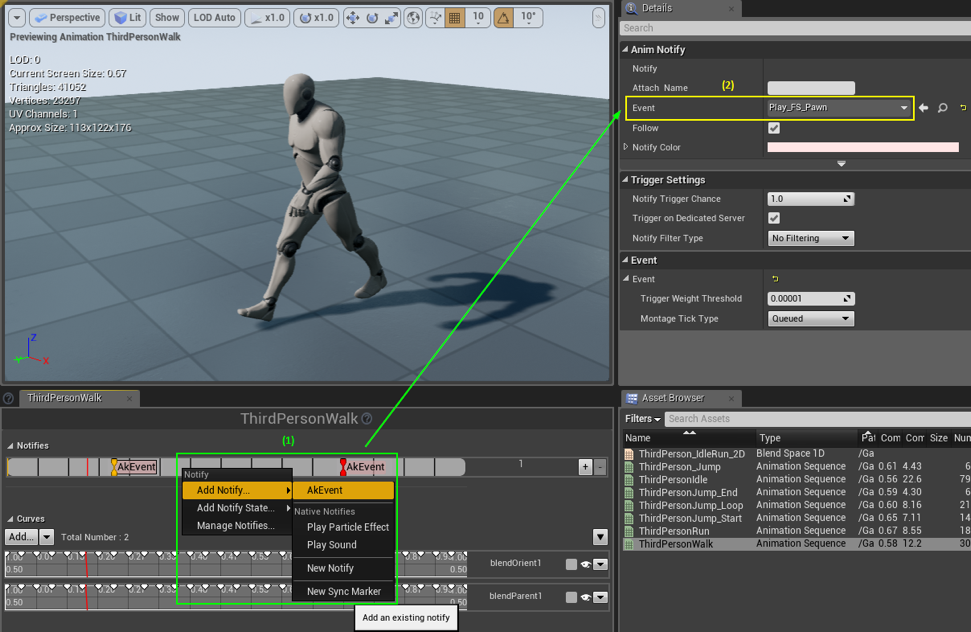
- (1) Add notify AkEvent to the desired position in the timeline.
- (2) In Anim Notify, choose the Wwise AkEvent Play_FS_Pawn created in the Wwise project.
Blueprint
- This Blueprint is where Unreal is going to “identify” the different material the pawn will walk on and send the correct Switch to Wwise.
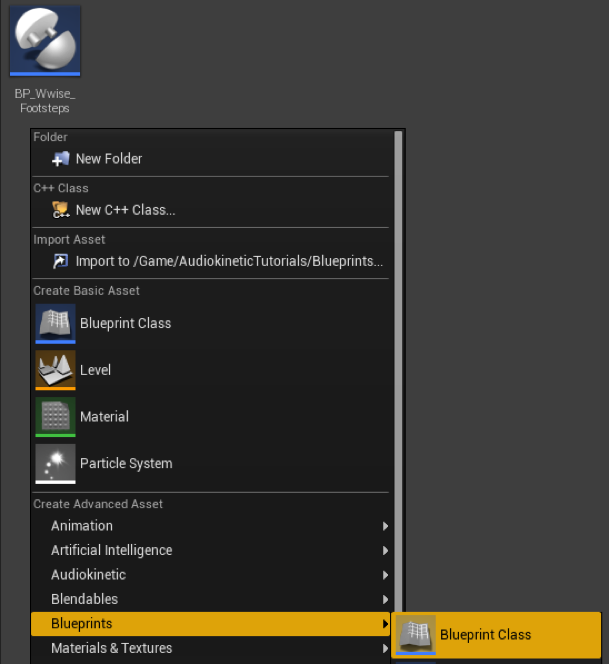
- In the content browser, create a new Blueprint Class (Actor Component Class) and name this Blueprint BP_Wwise_Footsteps.
- Open the Blueprint and start to script it. Once finished, it should look like this!

Let’s have a closer look at each block of scripting:
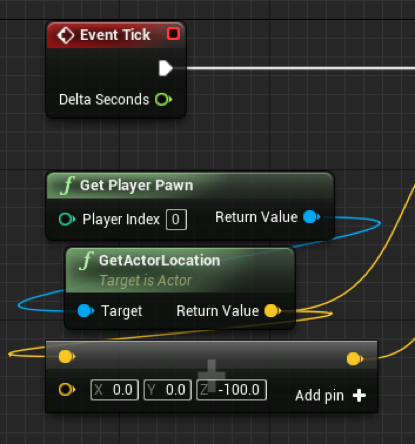
- (1) The Blueprint is tick based, and it takes the location of the player pawn.
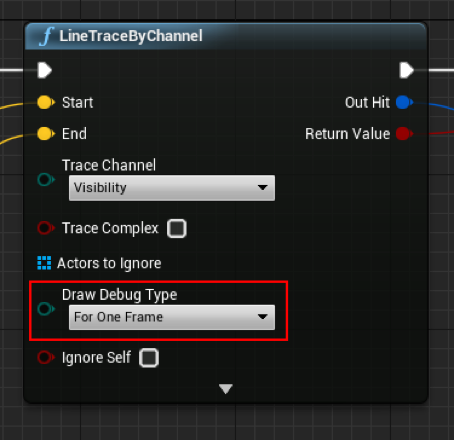
- (2) The LineTraceByChannel box is basically a ray-trace made from the start-to-end input (the Z value should be adjusted, depending on your pawn). You can visualize the ray-trace in game by turning Draw Debug Type to “For One Frame”; it will display a red line under your pawn to the ground and, if the ray-trace is colliding with the ground, a box at the bottom .
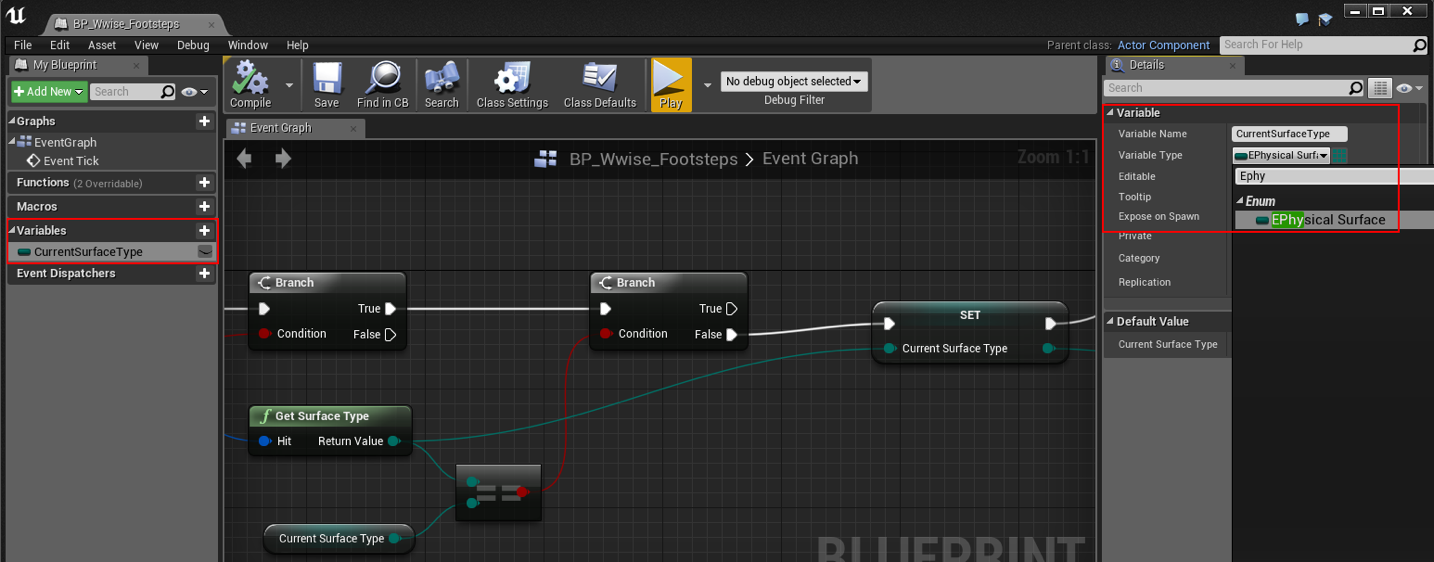
- (3) The first Branch box is to check if the LineTraceByChannel has a return value.
The second one is to avoid the Blueprint sending the Switch to Wwise if the pawn doesn’t walk on a new Surface Type. Without this gate, at each tick Wwise would receive the Switch indefinitely!
The Get Surface Type box returns an Enum that is linked to the Project Settings.
To be able to get and set this variable, create a new variable named CurrentSurfaceType and set its type to EPhysical Surface.
- (4) As I said before, a Wwise Switch is “game object based”. In this particular case, the AkEvent notify which is posted in the Animation Sequence creates an Ak Component attached to the mesh, so we need to cast the Set Switch on this Ak Component and not on the pawn itself.
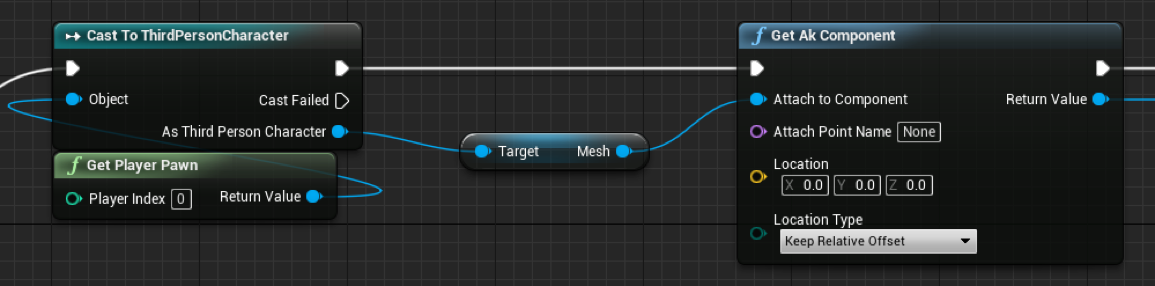
- (5) This box returns the corresponding string to the Surface Type Enum (Concrete, Grass, …).
- (6) Now, we can feed the Set Switch box that will send to Wwise the Current Surface Type the pawn is walking on!
Target: Get the Ak Component from the mesh where the AkEvent is posted
Switch Group: Material (same that has been set up in Wwise session)
Switch State: Surface Type defined in Unreal
The Print String box is just for debugging purposes to display the Current Surface Type in the Unreal Screen.
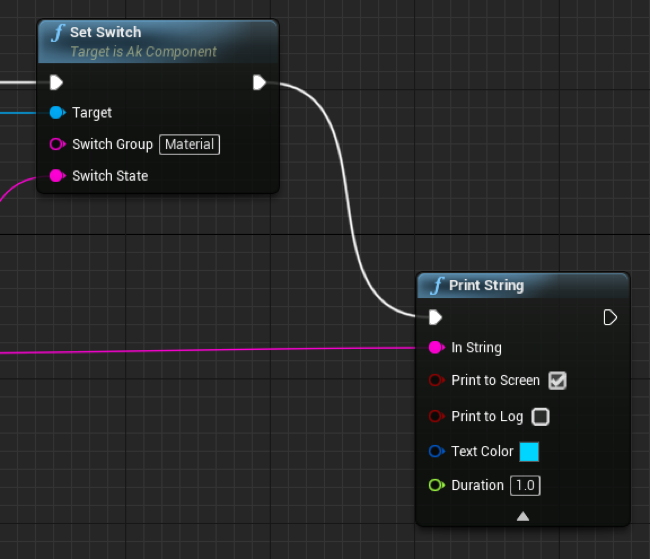
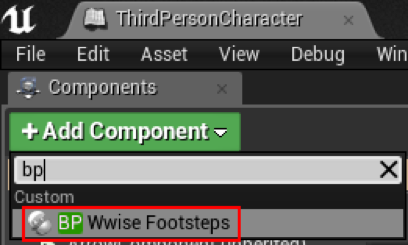
- Compile the Blueprint, save it, and add it as component to your pawn.
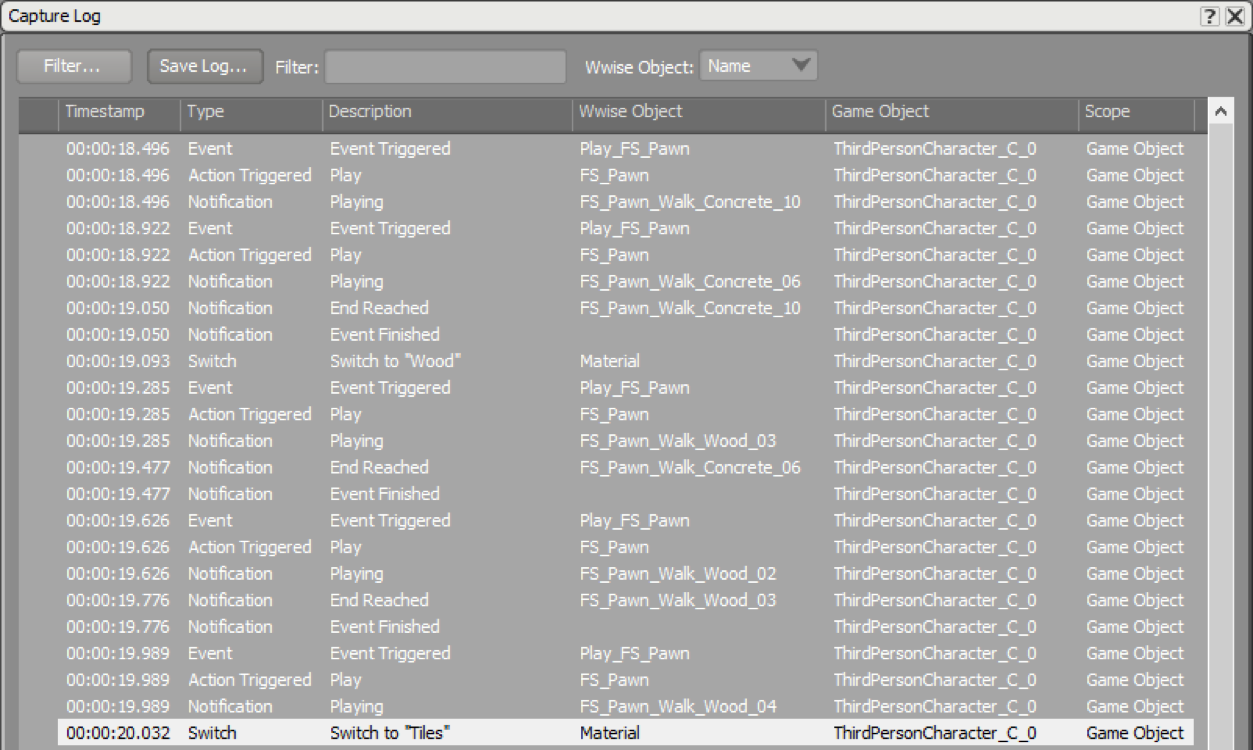
- Connecting Wwise to Unreal will show the Switch in the Profiler layout's Capture Log view.
Going Further
A very cool feature offered by Wwise is the ability for a Switch to be entirely controlled by an RTPC, which means a Switch can be changed according to values sent to an RTPC!
In our case, this will be great because we are going to use this feature to switch footsteps between Walk and Run depending on the pawn’s speed.
In UE4, open the Pawn’s Animation Blueprint and add a Set RTPC box at the end of the “Update Animation Event” (which is tick based).
- Target: We have to get the Ak Component where the Ak Event Notify is posted.
- RTPC: Pawn_Speed
- Value: Get Speed (velocity based)

Creating a Switch controlled by an RTPC
- Create a new Switch Group called FS_Type with Walk and Run as Switch values.
- Create an RTPC called Pawn_Speed.
Min = 0 (pawn is idle)
Max = 300 (max speed)
Default = 0
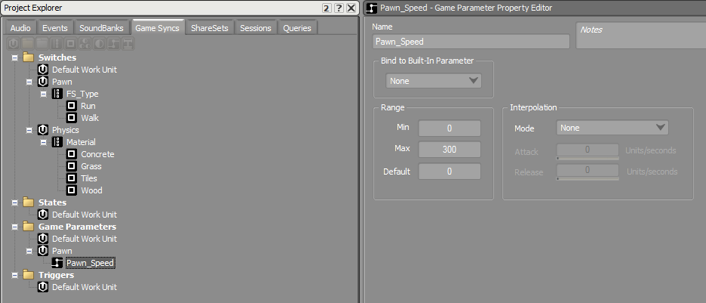
- In my case, I know that 0 ≤ Walk Speed < 250 ≤ Run Speed ≤ 300 (you can track this speed in real time by connecting Wwise to Unreal and profiling the RTPC sent to the pawn).
- Link the Pawn_Speed RTPC to FS_Type Switch by enabling Use Game Parameter and creating a “stair” like that.
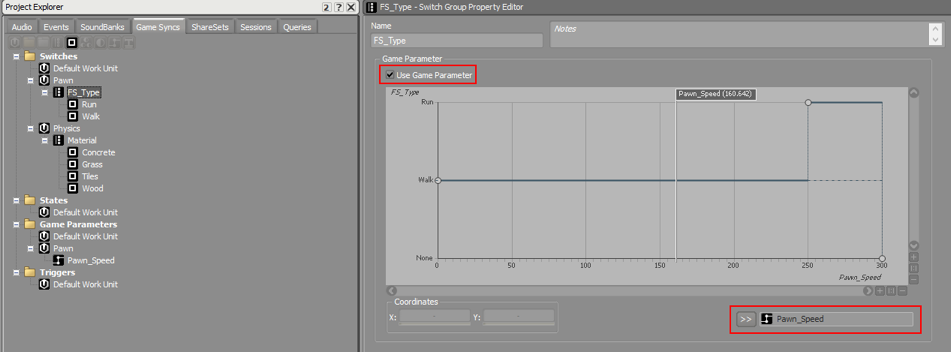
Our Switch is now controlled by the RTPC value sent by the game:
- Switch to Walk when 0 < Pawn_Speed ≤ 250
- Switch to Run when 250 < Pawn_Speed ≤ 300
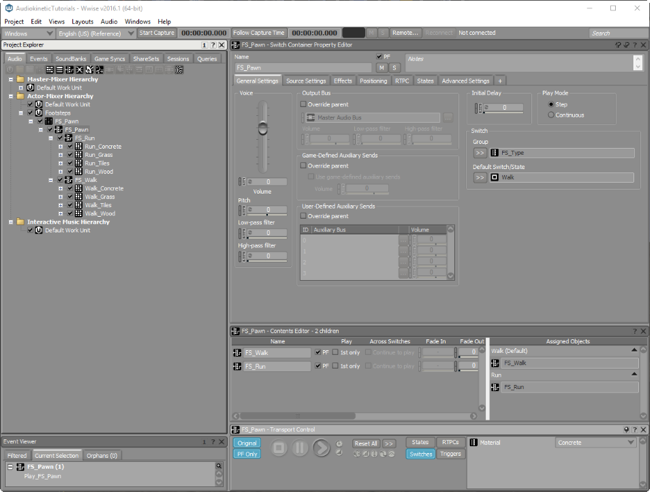
- Import all the Run Assets audio files in your hierarchy and create a new Switch Container, based on FS_Type, which will contain the two Switch Containers based on Material. You should have something like this (you can easily use Bradley Meyer’s method to do that quickly).
- Build your SoundBanks, play, and enjoy!
Unity 3D
Setting up Tags
- Click on any actors in your map and go into the Inspector window.
- Click the Tag drop-down box and select Add Tag….
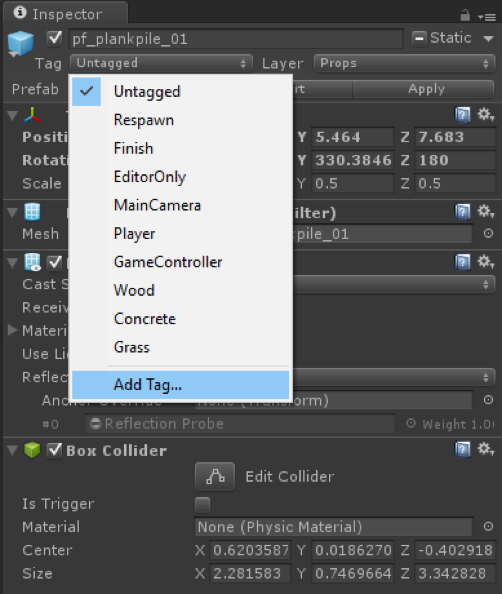
- Add the Wood, Concrete, Grass, and Tiles values in this window.
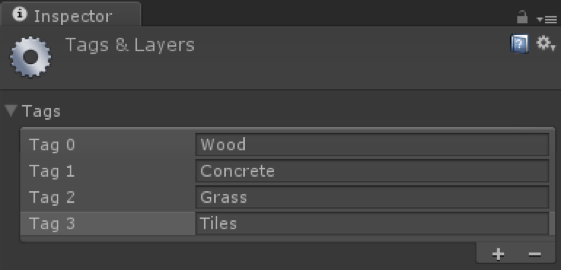
Ground setup
- For each ground/object that a player can walk on, assign the right Tag in the Inspector window to the Collider.
- Sometimes a Collider is not embedded with the mesh, so be sure to set the Tag on the Collider and not just on the mesh.

C Sharp code
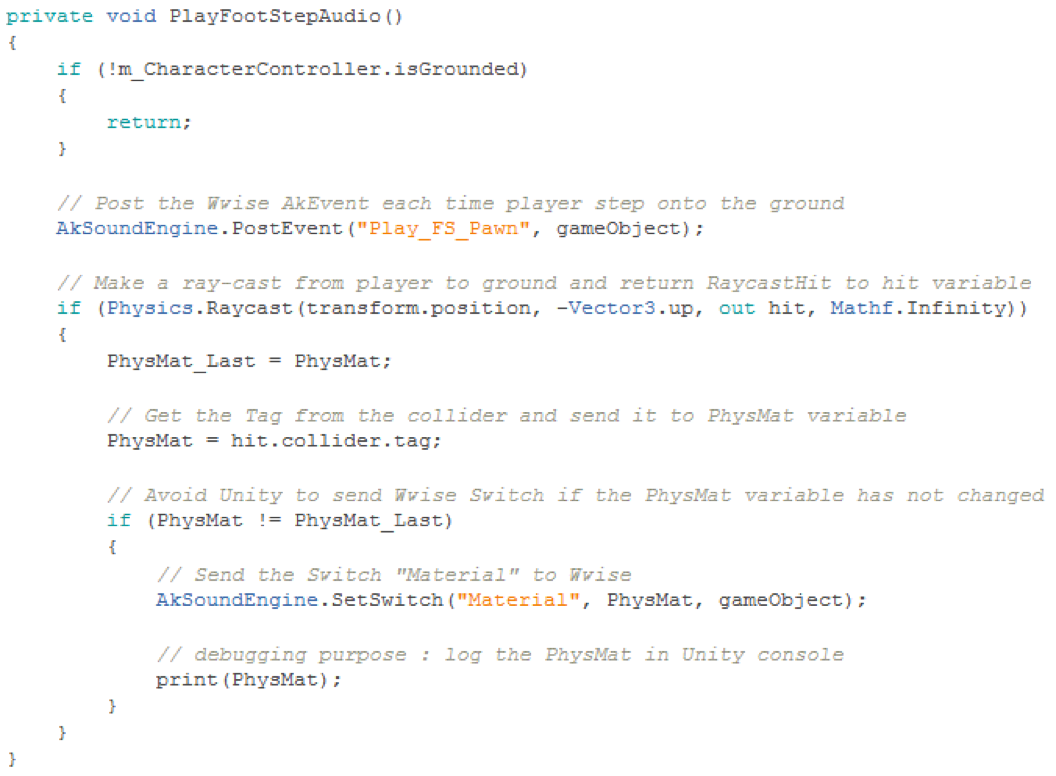
- Add this C# code to the Character Controller script of your project.
- Variables declaration:
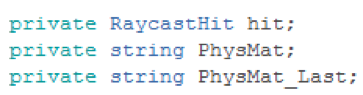
- Main script:
Hope you enjoyed this, and I look forward to sharing more game audio with you on the Audiokinetic blog very soon!



댓글
Alvaro Lopez
October 24, 2016 at 04:27 pm
I have an issue: The notification Switch to "[material container]" is received but it is not switching. Is there anything that will enable this? I'm stuck Thank you
Jakub Piekarczyk
February 25, 2017 at 07:14 am
Thank you, very helpful.
Panagiotis Pagonis
August 23, 2017 at 12:34 pm
Does this method work on a 1st person too ?
Sebastien Gaillard
August 30, 2017 at 09:58 am
Yes, In your case (FirstPersonCharacter) you have to : - use "Cast To FirstPersonCharacter" blueprint box instead of "Cast To ThirdPersonCharacter" - target “Mesh 2P” instead of "Mesh"
Panagiotis Pagonis
September 20, 2017 at 11:04 am
Thank so much for the respond! I just saw your reply. I worked it out somehow.
Eric Lavallee
October 26, 2017 at 03:19 am
When I package the game, and everything above is done in unreal to the tee. All surfaces react in real time in game no problem names of surface types print to screen confirmed. But in packaged game the game seems to forget the names for the surface types. 4.16.3. What can do.
Jeshua Whitaker
December 01, 2017 at 03:30 am
Great blog post! I have tried to implement your code into Unity's Standard Asset FirstPersonController script without luck. Any tips appreciated!
Anthony Matt Rochette
August 02, 2018 at 08:39 am
Hi, I tried it with the demo ShootingGame available on the Epic Games Launcher. It's a FPS but there is no FirstPersonShooter, so I tried with PlayerPawn but it did't work ! I'm trying to find a way to make it work but I really don't know how ! Can you help me ?