
In my previous article, we reviewed a few of the various possibilities where the Wwise Authoring API (WAAPI) can be used to integrate Wwise with other applications, and also to add custom functionalities to Wwise. In a nutshell, WAAPI allows any applications or scripts to remote-control, query, or modify the Wwise project data. WAAPI, therefore, opens all kinds of possibilities.
Today, we will walk through an example of putting WAAPI to use. We will look at the implementation of a simple web application which, with a single movable point, provides an X-Y pad to control two game parameters at the same time within a 2-dimensional area. The application connects to the currently opened project and displays the available Game Parameter objects.
This sample will demonstrate the following functionalities:
- Retrieving objects from a project
- Setting object property values
- Updating on property value change
Creating a Wwise Project
The nice thing about this demonstration is that it works with any Wwise project. But for this article, we will create a simple Wwise project that implements a Theremin musical instrument.
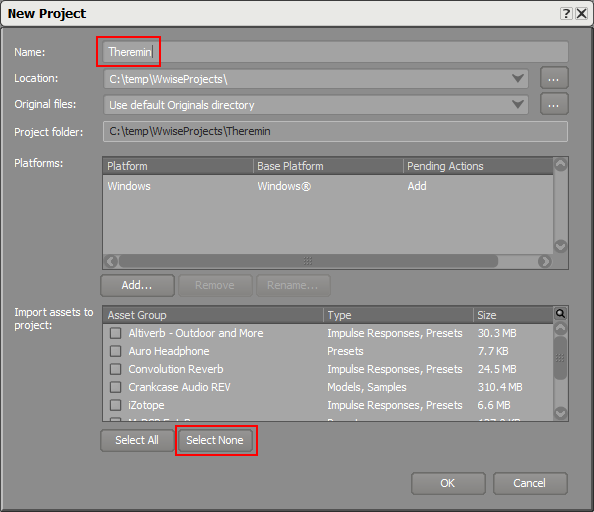
Create a new project
Create the Theremin Sound
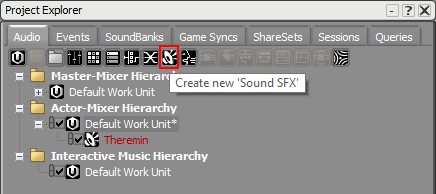
In the Project Explorer:
- Create a new Sound SFX object.
- Name it Theremin.
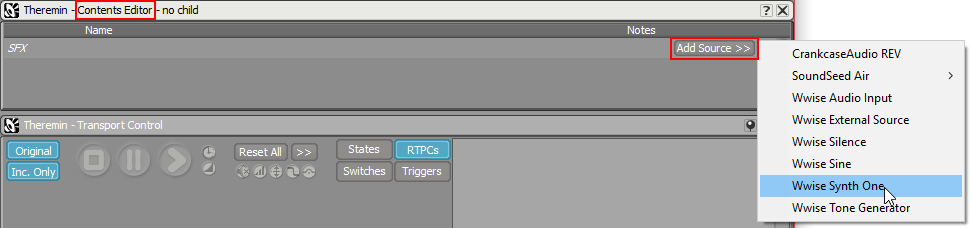
- Select the newly created object.
- In the Contents Editor, Click the Add Source >> button.
- Select Wwise Synth One.
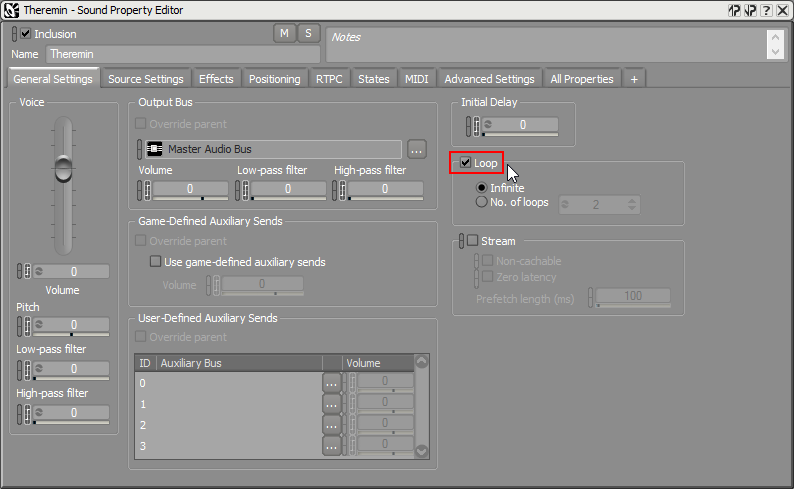
- In the Property Editor for the Theremin object, enable Loop.
Associate Game Parameters
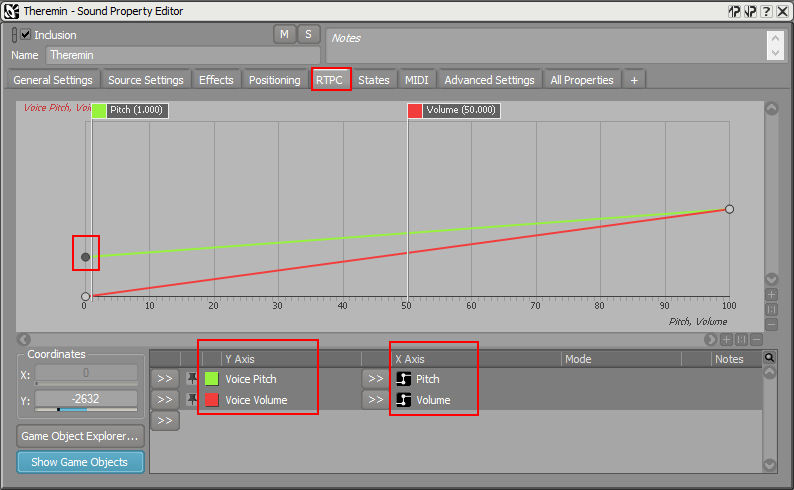
- Go to the RTPC tab of the Theremin object.
- Assign two new Game Parameters “Volume” and “Pitch” to the Voice Volume and Voice Pitch properties.
- Modify the Voice Pitch curve as shown below.
That’s it. Now save your project!
Enable WAAPI in Wwise
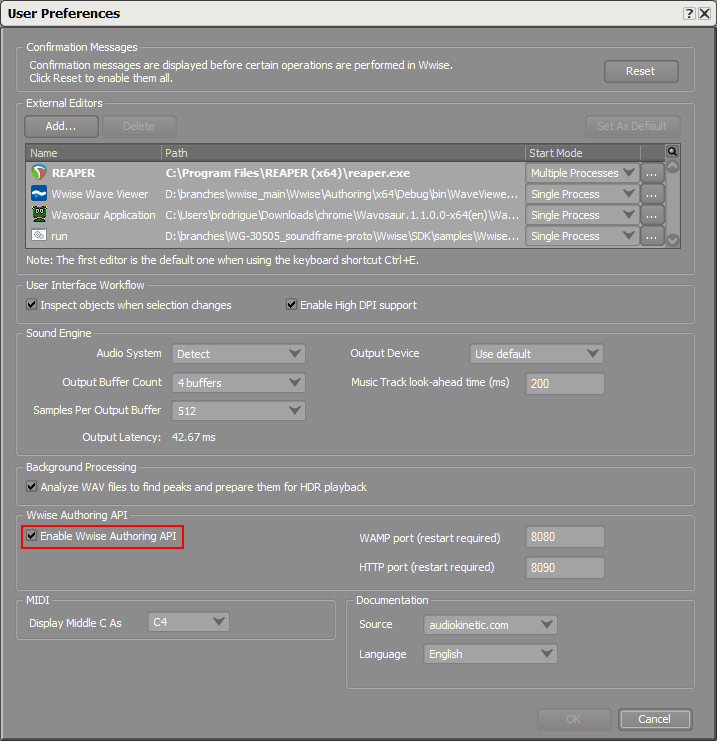
Before you start using WAAPI, make sure you enable WAAPI in the User Preferences:
- Click menu Project > User Preferences.
- Click Enable Wwise Authoring API.
- Click OK.
- Restart Wwise.
The WAAPI client
Now let’s take a look at the actual web application.
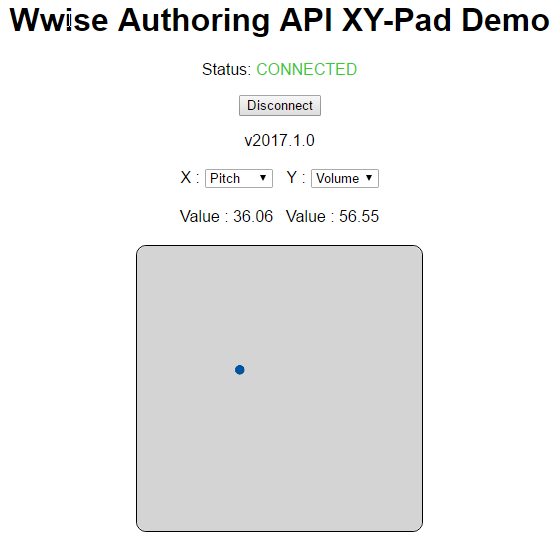
This application shows a blue dot, which allows to modify two distinct game parameter values while connected to Wwise. Once connected, the sample will retrieve the list of game parameters from the project. In our example, it retrieved the Pitch and Volume game parameters. From there, we can hit Play in Wwise and move the little blue point to get our theremin working.
The source code
OK, let’s look at how this has been implemented with WAAPI.
For reference, you will be able to find the complete source code of this application in the Wwise 2017.1 SDK samples:
SDK/samples/WwiseAuthoringAPI/js/xy-pad.
Please take a moment to look at the readme.md file to learn how you can install dependencies and how to run the sample. This is crucial because the sample won’t work if you don’t install dependencies.
Most of the code for the application is located in js/app.js.
Connecting to WAAPI
Connecting to WAAPI is fairly simple. This example is using autobahn.js, which provides a complete WAMP implementation in JavaScript. The most important element is the URL to connect to WAAPI. Keep in mind the WAAPI server is built into the Wwise Authoring application, so make sure Wwise is running before you try to connect. Here, we create the connection object to localhost on port 8080.
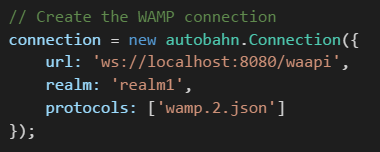
From there, we can connect:

Once the connection is established, WAMP has two mechanisms by which it communicates:
- Remote Procedure Call (RPC): Execute a function remotely, with arguments, and obtain results.
- Subscribe/Publish (Pub/Sub): Register to a specific topic, and get notified when something is published about that topic.
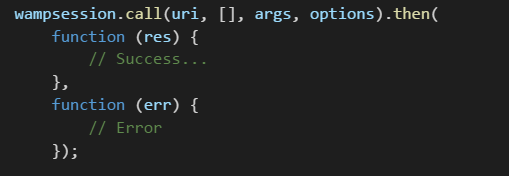
Calling an RPC function with autobahn.js is also very straightforward. You need to specify the following elements:
- URI: The unique name of the RPC function
- Args: Arguments for the function, described as a JSON object. The Wwise SDK documentation describes all arguments required for every RPC call.
- Options: Options for the function. Can be an empty object.
Then, the call function will return a promise object, which can be used to specify a success callback to receive the results, and an error callback to receive the errors.
A typical call would look this this:
Obtaining the Game Parameters
One of the first calls made by the sample is to retrieve all game parameters of the project:
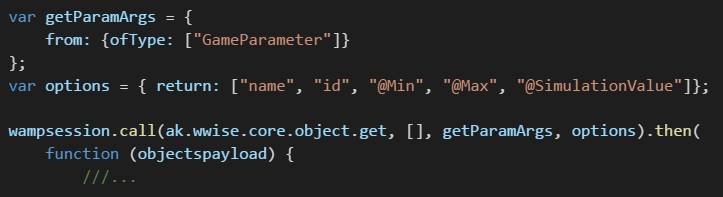
This remotely calls the URI ak.wwise.core.object.get, which takes a query object as arguments, and returns a list of objects with the specified options. In this scenario, the query specifies a source (from all objects of type “GameParameter”), which returns all game parameters.
Then the option component specifies what to return from these objects. This allows you to capture plenty of information from a single query.
Setting Properties
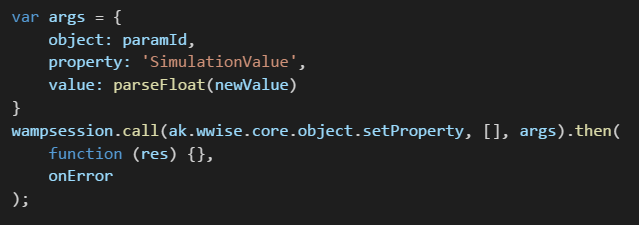
When the blue dot is moved in the user interface, it calls the RPC URI ak.wwise.core.object.setProperty, which allows for any property of any Wwise object to be modified. In this scenario, we specify the ID of the object, the property to modify, and the new value to set:
Getting notified when a property changed
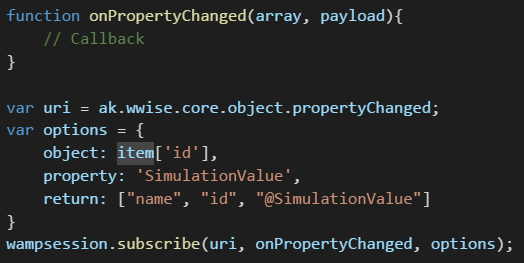
Modifying the Game Parameter simulation value directly inside Wwise will also update the x-y pad application automatically, because we subscribed to the topic ak.wwise.core.object.propertyChanged. The blue dot is two-way bound to the actual Game Parameter value.
Subscribing to a topic is simple: you provide the topic URI and the subscription options. In this case, we need to specify which object and property we are interested in. We can even specify what to return in the callback:
Conclusion
This sample only covers the tip of the iceberg in terms of functionality for WAAPI. Take a look at the WAAPI documentation to find out more about all functions available, what arguments they require, and what they return.
Keep in mind that WAAPI is language and platform independent, which means you can implement clients in many different languages, and on virtually any platform. The WAMP protocol, which is used for convenience and performance, is also an optional communication protocol. Bare HTTP is also supported. Someone could actually use WAAPI on HTTP with cURL on the command line:
curl -H "Content-Type: application/json" -X POST -d "{\"args\":{},\"options\":{},\"uri\":\"ak.wwise.core.getInfo\"}" http://localhost:8090/waapi
Homework
Modify the sample
Here are some exercises for you to do in this sample:
- Add a Play/Stop button (look at the transport example)
- Show a grid in the x-y viewport
To learn more
Implementing Javascript client applications can either be a lot of fun or, perhaps, scary if you are an old-school C++ developer. Here are a few subjects you can read about on the web:
- Javascript, promises, asynchronous code.
- Node.js: execute JavaScript at command line, run web servers.
- Typescript: do safe JavaScript.
- Javascript client frameworks: React, Angular.js, Vue.js, aurelia.




댓글
Ben Nix-Bradley
July 15, 2019 at 05:23 pm
I'm trying to find help generating visualization from wwise. Like making a VU meter in unity or other visual feedback that could be derived from spectral analysis. How do I do that with this tool? It's a very difficult thing to find with the language that I know. I've been looking through the documentation and integration guides for a couple weeks and don't have so much information about the audio buffer or even a similar entry point that I could roll other FFT operations from scratch... losing train of thought.. please help.