
Since its introduction with Wwise 2017.1, the Wwise Authoring API (WAAPI) has had a good reception amongst software developers. We have seen Wwise integrations built for REAPER and Soundminer, and game studios have also started to use WAAPI alongside their in-house tools, including game engines, build pipelines, and other systems. At Audiokinetic, we also started to use it within our own Unreal integration, making it accessible via Blueprints and native Unreal controls. This could actually be the subject for a future blog post.
In this article, we will talk about three new WAAPI projects that I have personally built for real-life scenarios, and also demonstrate a few of the many features of WAAPI. I hope that these projects will give you new ideas so you can use WAAPI for your own needs. So, let’s start with our first project!
Set up the projects
For each of the projects listed in this article:
- Clone the repository from GitHub, by using the git URL provided in GitHub.
- Follow the instructions in the repository's readme.md file.
..
Text to Speech
See Text to Speech on GitHub
If you are working on a production that has a lot of dialogue lines, text-to-speech technology can be used in the early stages of development to generate temporary placeholders for your voice recordings. If the script is already available, you can actually generate WAV files from it. Unfortunately, Wwise does not have built-in text-to-speech functionality. But, the good news is that it is actually not hard to add this functionality to Wwise using WAAPI and a text-to-speech engine. There are many text-to-speech engines available on the market. The quality differs a lot between them. Some are actually very good and realistic, and some, more basic, have minimalist implementations and sound very robotic. Some of them are free, others are not.
For this project, I decided to use the text-to-speech engine built into Windows. It is of good quality, offers multiple languages and voices, and most importantly here, is easy to use and does not require any installation. There are several ways to get Windows text-to-speech, including from the Windows C++ SDK and the Windows PowerShell.
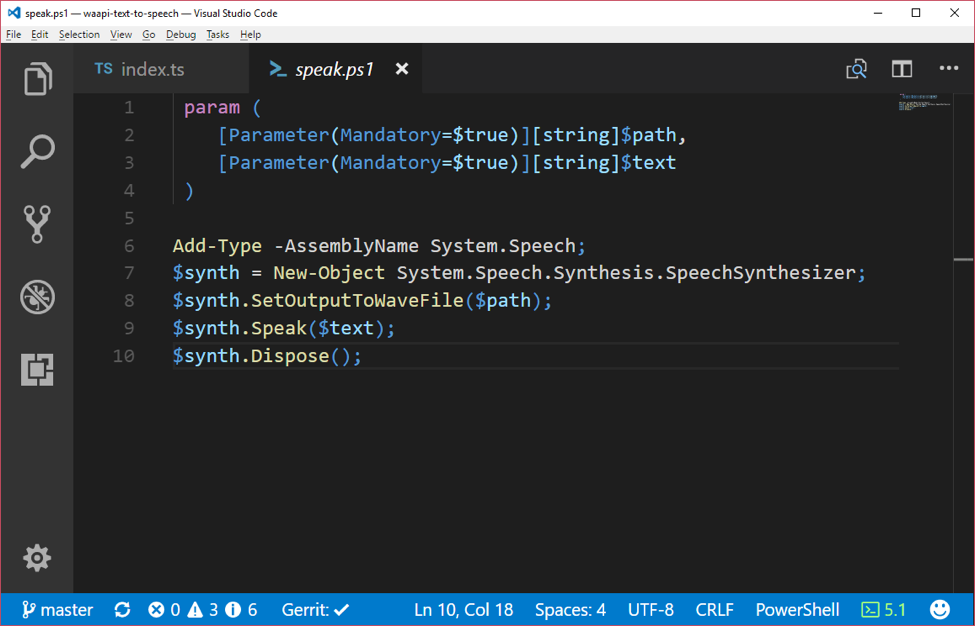
This project uses the External Editor functionality to trigger a script that:
- Retrieves the current selection from Wwise.
- Extracts the name and notes from the selected objects.
- Generates a text-to-speech WAV from the notes.
- Imports the WAV into the project.
Using text-to-speech from Wwise
Follow the instructions in the readme.md file to install, build, and set up the text-to-speech in the external editors.
- Create an empty sound object in your project.
- Type some text in the Notes field.
- Right-click the sound and select text-to-speech in the Edit in External Editor sub-menu.
- Notice the sound turned from red to blue, as the WAV file was automatically imported into the project.
Analyzing the Script
The first step in the script retrieves the current selection from Wwise using ak.wwise.ui.getSelectedObjects. It does so by also specifying return options. These options tell WAAPI to return specific information from the selected object. In particular, we are interested in the Name, ID, Notes, and Path. In a single request, we are able to build our text-to-speech tasks, even supporting multiple selections.
The next step is to trigger the PowerShell script that will generate the WAV files. The Powershell script uses the speech synthesis engine built into Windows. The WAV files are generated to a temporary location.
The last step will use the ak.wwise.core.audio.import function to bring the temporary WAV files to Wwise.
This project can be used as-is, or it can be modified to use another third-party text-to-speech engine.
..
Jsfxr for Wwise
See Jsfxr for Wwise on GitHub
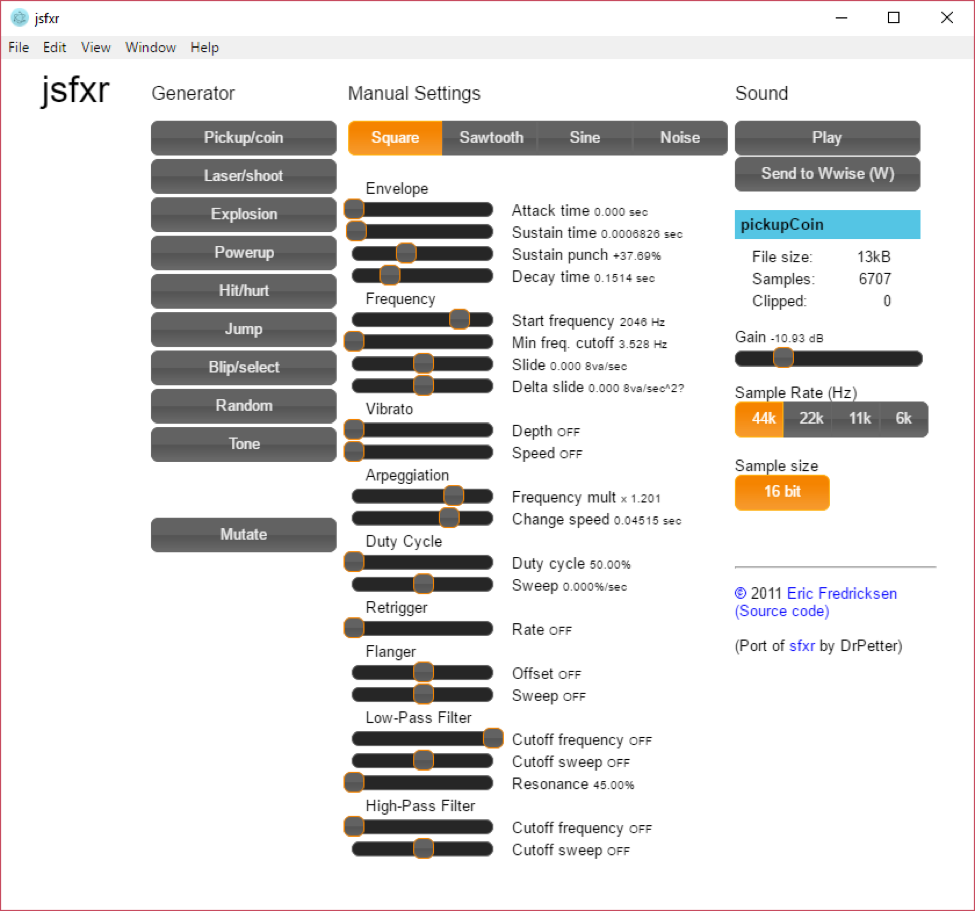
The sfxr project was originally created by DrPetter in 2007 in C++ for a coding competition. It is a rapid sound design tool that is used to create retro-style sounds from randomized parameters using clever templates to restrict randomization. The results are so much fun and instantaneous.
The project became very popular over the years, and was then ported to a variety of languages, including JavaScript. Jsfxr is one of the JavaScript ports. I have forked the project and added two features to it:
- Embedded the web page into an Electron desktop application
- Added a Send to Wwise button
The import function available in WAAPI requires the WAV files to be stored on disk. Since a web page can't write files to disk, for security reasons, embedding to Electron helped solve that issue because Electron apps offer both a chromium frontend, to display web pages, and a node.js backend, to access operating system services such as disk and processes. The original version of jsfxr required a web server running to save WAV files. This has been removed.
Running Jsfxr
Follow the instructions in the repository's readme.md.
Analyzing the Script
Most of the WAAPI interaction occurs in wavefile.ts. The content of the WAV files is actually entirely generated on the frontend, and is sent through Electron’s IPC mechanism.
The WAAPI usage is fairly simple; only one function is used: ak.wwise.core.audio.import . The code creates a new Sound SFX object, and imports the WAV file to it. To avoid filename conflicts, we create unique filenames based on the hash of all parameters.
Import by Name
See Import by Name on GitHub
This project demonstrates the usage of a naming convention that imports WAV files, creates Wwise structures and Game Syncs, and assigns objects to Switch Containers, all in one single WAAPI ak.wwise.core.audio.import call, without any user interaction.
Naming conventions are very powerful when they are well defined and used consistently. They allow you to automate tasks, better organize your content, and quickly recognize and find your assets. If well structured, naming conventions can be used to define regular expressions that will help you extract information from the asset names. This is what we demonstrate here.
For this demonstration, we are using some of the WAV files from the Wwise Sample Project, which can be downloaded with Wwise from the Wwise Launcher. The samples we are interested in are the footsteps:
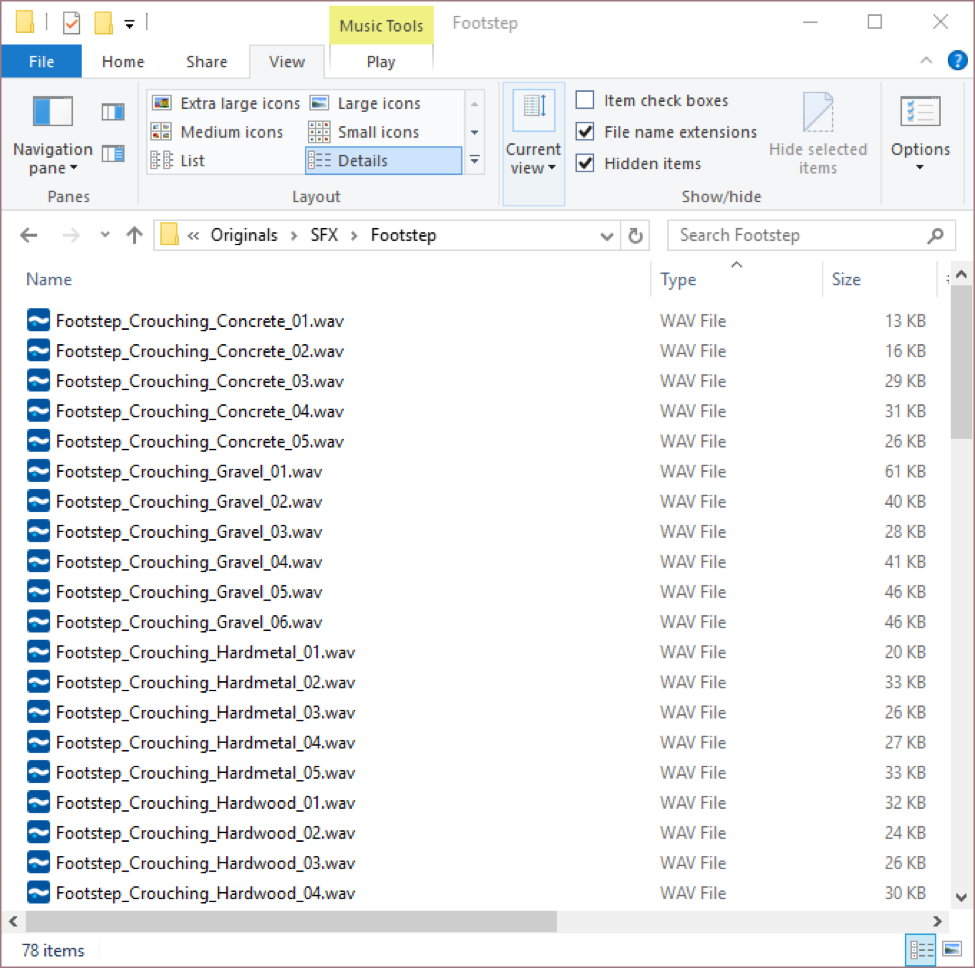
The naming structure is:
<Name>_<Type>_<Surface>_<Variation#>.wav:
where:
- Name: Name of the top container
- Type: Type of movement
- Surface: Type of surface
- Variation#: ID of variation for randomization
Analyzing the Script
We use the following code to extract content with a regular expression:
var matches = filename.match(/^(\w+)_(\w+)_(\w+)_(\d+).wav$/i);
This naming convention probably won't work for you, and might be incomplete for your needs. But it is simple enough for the purpose of this demonstration. From the name, we are able to extract all container names and switch associations. So, we are able to feed the WAAPI import with the information required to import everything in a single step.
Conclusion
Clone these projects, look at the code, and try running them. Think about how you can adapt these projects for your own scenarios. Learn JavaScript and node.js programming.
The possibilities are huge when used with the External Editor in Wwise. You can display reports, execute automation tasks, or call your game engine. You can extend Wwise however you’d like.
Bernard Rodrigue presented WAAPI and the samples mentioned in this blog at the Austin Game Conference, September 21-22, 2017 - Austin, Texas



댓글