
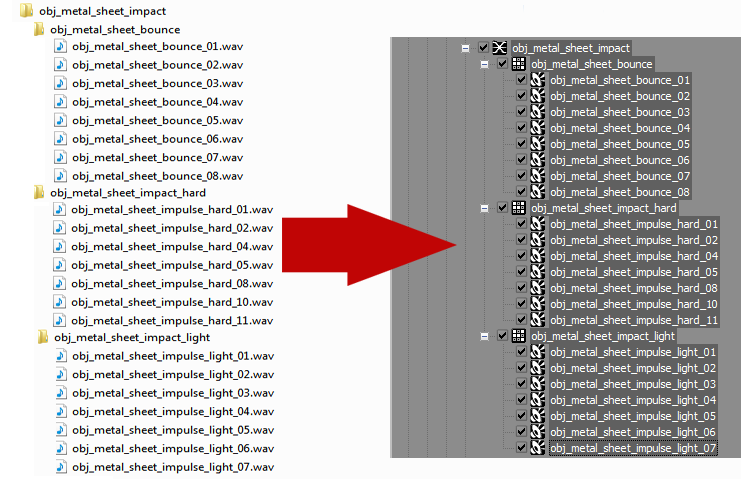
Like many tools in a game developer's toolbox, Wwise is a deep, complex program with documentation longer than most novels. Who has time to read through entire documentation these days? I wanted to show off a simple, often overlooked feature in Wwise, which may not be readily apparent to someone who hasn’t read the manual. The ability to import a folder structure and apply a Wwise structure as a template to it can save a ridiculous amount of time when setting up structures in your project that may have a similar layout to other ones already in your project. With a little forethought and a few mouse clicks, the process of setting up complex structures in Wwise becomes an automated dream.
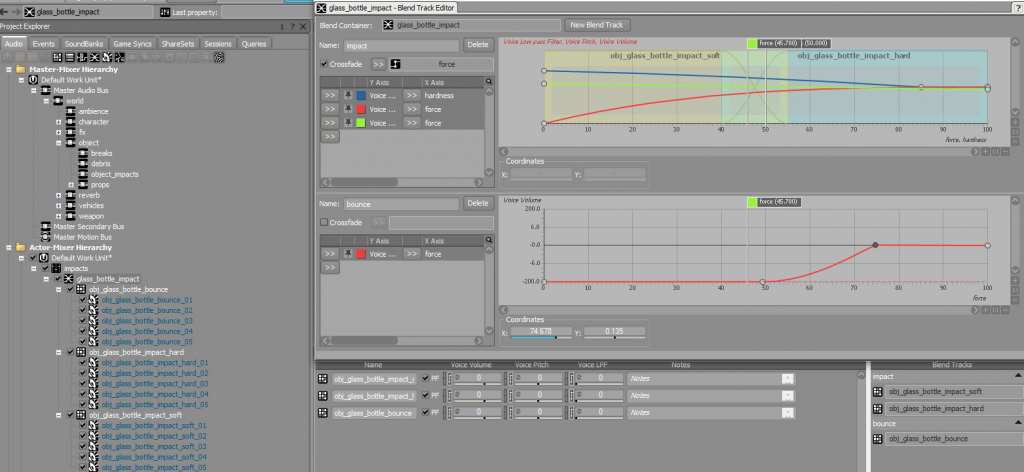
To start, let’s say we have a series of impact sounds which blend between soft and hard impacts based on the force of the impact and an additional layer of bounce sweeteners which only play above a certain force. We also do some filtering and pitch randomization based on the force and hardness of the objects colliding (via an RTPC). This is organized in Wwise as a Blend Container with some child Random Containers, which each contain audio files:
Now, let’s start thinking about each of these structures as a folder. If we want to use this structure layout elsewhere in Wwise, we can “rebuild” or emulate this structure layout in Windows using folders. Where we have structures in Wwise (the Audiokinetic nomenclature for containers, Actor-Mixers, Virtual Folders, and so on) we create folders in Windows, which will serve as a guide for Wwise when we import new sounds. A Windows folder-based layout mirroring the impact structure above would look something like this:
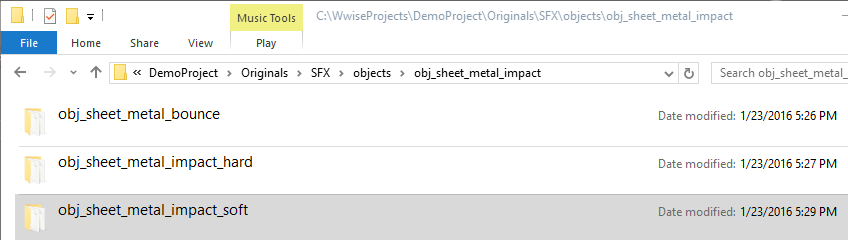
Similar to the Blend Container in the Wwise example above, we have a “master folder,” in this case obj_sheet_metal_impact, which contains three folders: bounce, impact hard, and impact soft. And within each of those folders are corresponding WAV files. With a folder structure in Windows that mirrors the structure we want in Wwise, we can import it into Wwise—complete with all of our bussing, RTPCs, crossfades, and so on created for us! (As an aside, I always build my folder structures directly in the Originals folder so that the organization is already in place without having to move WAV files and folders around as an extra step in the File Manager.)
Once your folders are laid out in a similar manner to your Wwise hierarchy, open the Audio File Importer in Wwise and click the “Add Folders” button. Navigate to the top-level folder of your new structure, in my case “obj_sheet_metal_impact,” and click “Select Folder.” This will open that folder in the Audio File Importer. You can now assign each folder level as a different structure in Wwise, such as a Random, Sequence, or Blend Container. The magic, however, happens when we click the arrow in the Template column and select “Browse,” then navigate to an existing sequence whose layout and parameters we want to emulate:
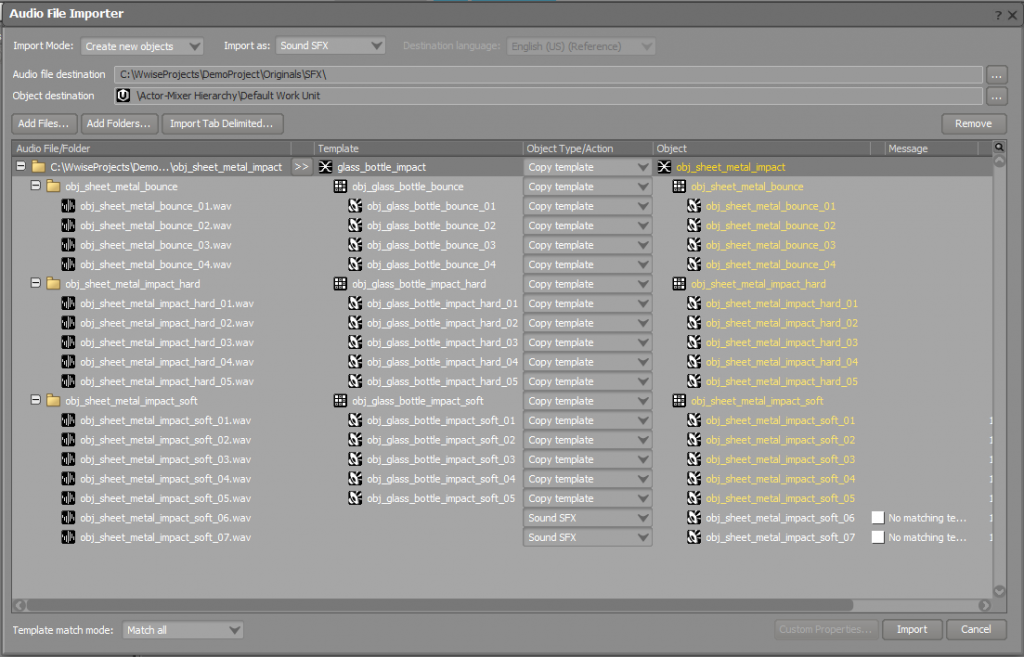
As you can see above, Wwise automatically fills in which structure each folder should represent and even handles having more (or less) audio assets in a folder. Shuffle things around as needed, then click Import and you’ll have a new structure mirroring the template structure complete with all RTPCs, crossfades, and other structures.
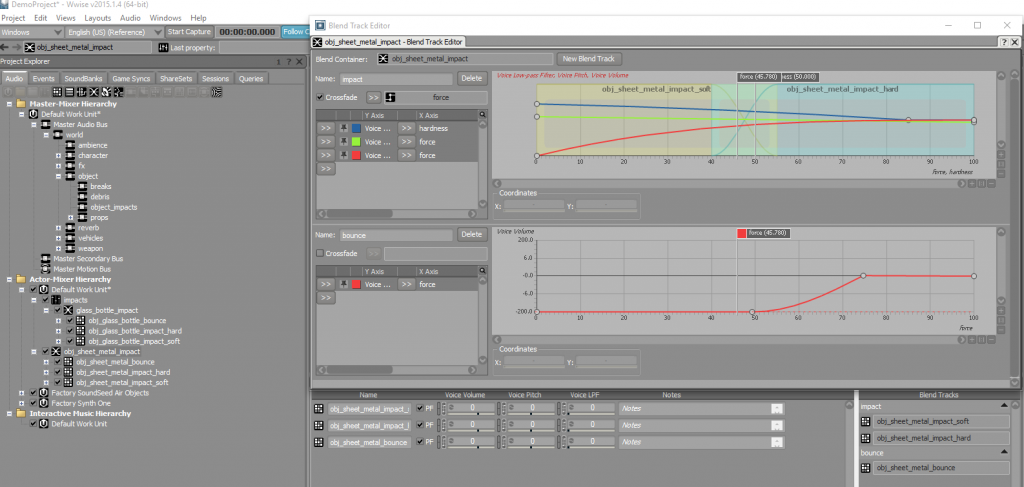
Once we import the folder structure using an existing structure in Wwise as a template, we’re then free to tweak it to our hearts’ (or games’) content; but, most of the grunt work has been taken care of through some simple folder organization. Happy templating!
Article originally published on Designing Sound



评论
Tom Todia
September 07, 2016 at 03:35 pm
Great post Brad, I am going to have to try this out right away.