Table of Contents
-
Modules
Now you need to populate both SoundBanks by dragging Events or objects into the SoundBanks. When you do this, all necessary audio assets are added to the SoundBank.
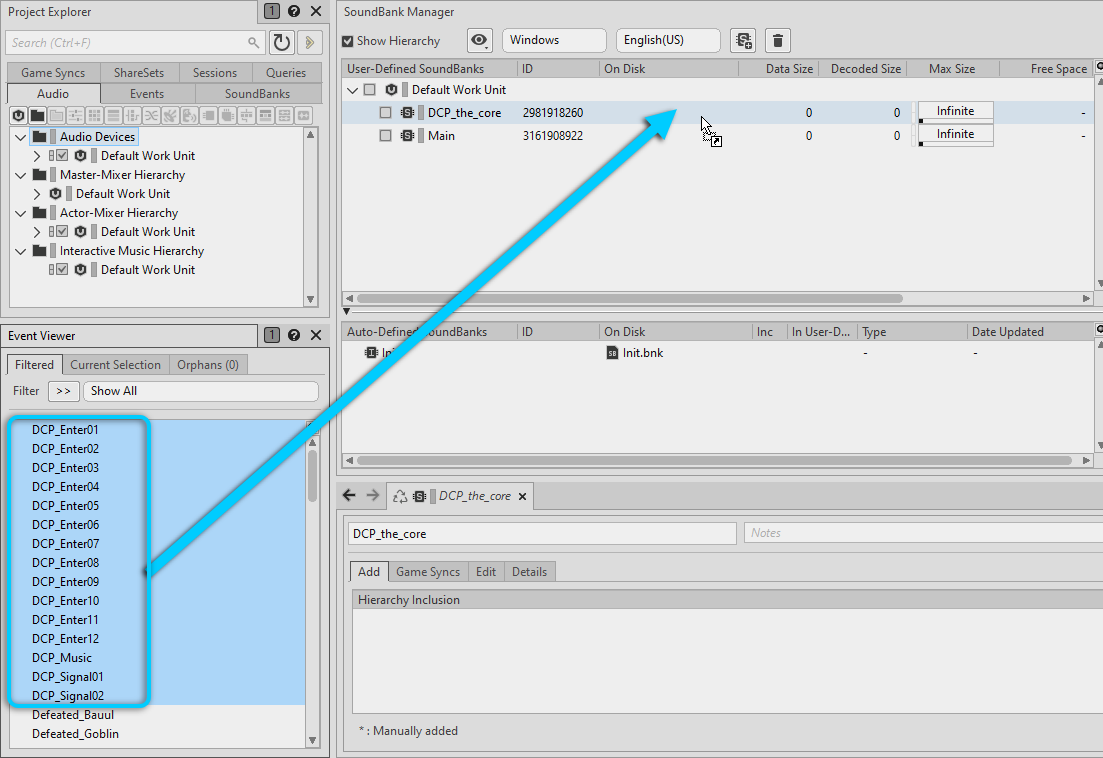
Fortunately, the names of all of the Events related to the dcp_the_core level start with "DCP" so they're easy to find.
-
In the SoundBank Manager, select the DCP_the_core SoundBank.
-
In the Event Viewer, select all of the Events that start with "DCP" and drag them onto the DCP_the_core SoundBank.
![[Tip]](/images/wwise101/?source=wwise101&id=tip.png)
To quickly select several Events that appear one after the other, select the first Event, hold Shift, and then select the last Event.
In the lower-right view, called the SoundBank Editor, you can see the Events you just added to the DCP_the_core SoundBank.
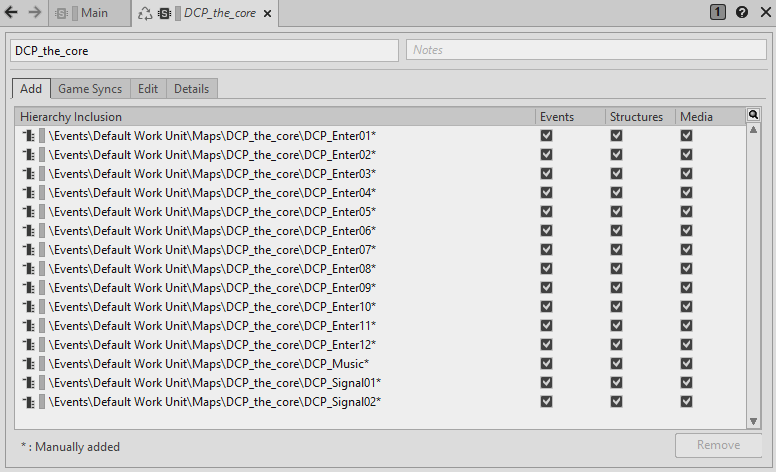
In the SoundBank Manager, notice the Data Size of the DCP_the_core SoundBank still hasn't changed. This is because you haven't generated the SoundBank yet. You’ll do that after you populate the Main SoundBank.
-
Select all of the other Events and drag them onto the Main SoundBank. Make sure you scroll down to the bottom of the list of Events to select them all.
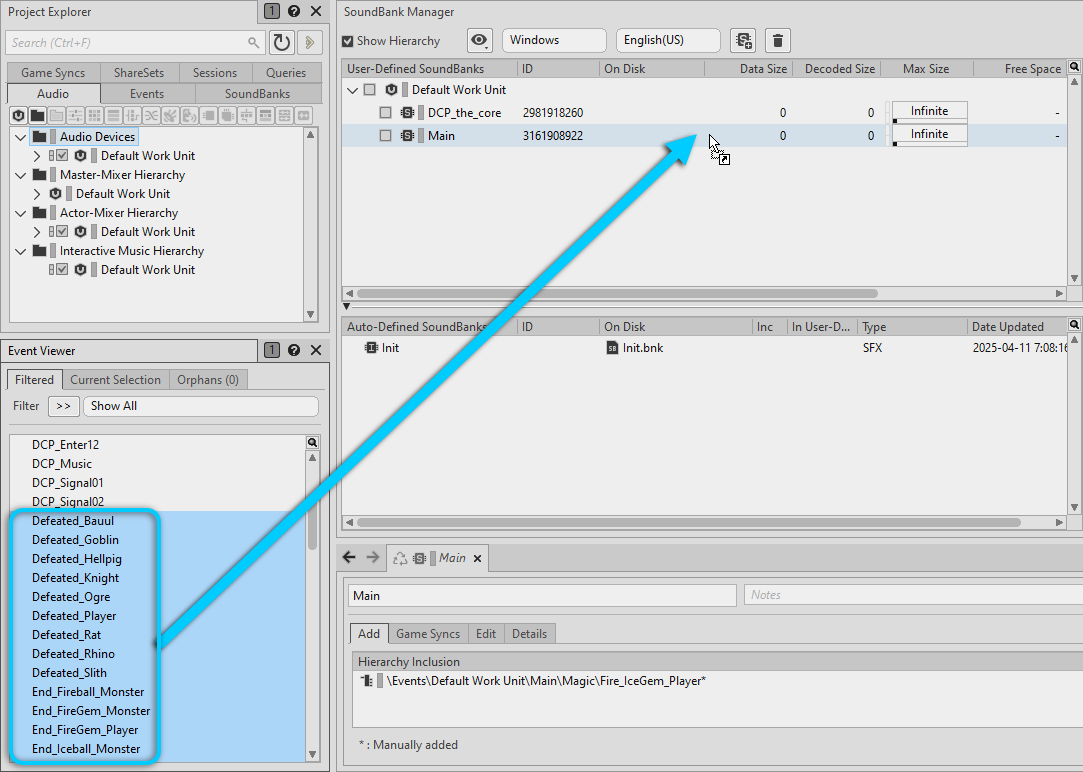
Now you've added all of the Events in your project to either of the two SoundBanks.
![[Note]](/images/wwise101/?source=wwise101&id=note.png)
The Fire_IceGem_Player Event was previously added to the Main SoundBank, but adding it again won't duplicate the Event.