Table of Contents
-
Modules
Now, for some variety, you'll create several more paths the gems can bounce along when they hit the ground.
-
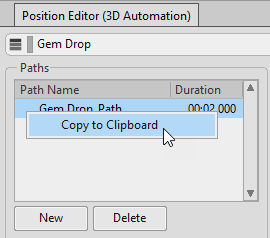
With the Gem Drop_Path selected, right-click and click Copy to Clipboard.
![[Tip]](/images/wwise101/?source=wwise101&id=tip.png)
You can also select the path in the Paths list and press Ctrl+C to copy it.
The current path is copied to the clipboard.
-
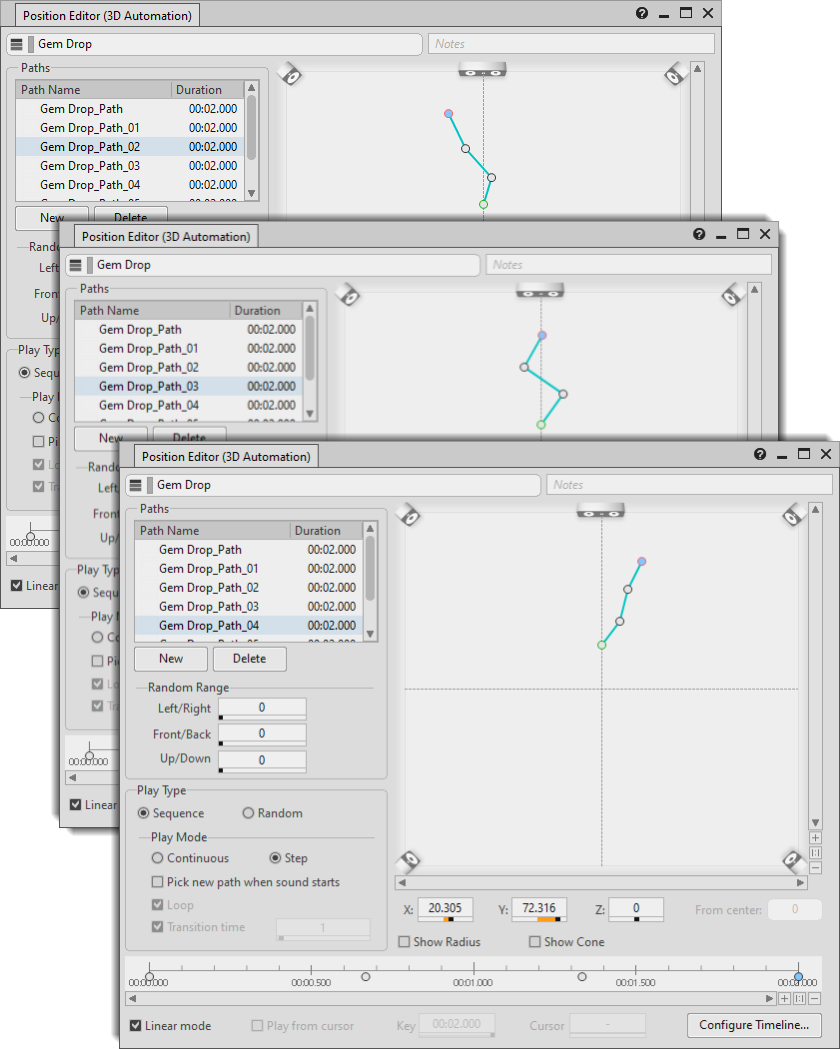
Press Ctrl+V six times to create six new paths.
-
Select a path and drag each of the dots around to change the path. Repeat until all seven paths are different.
-
Select the Random and Continuous options, and then close the Position Editor (3D Automation).
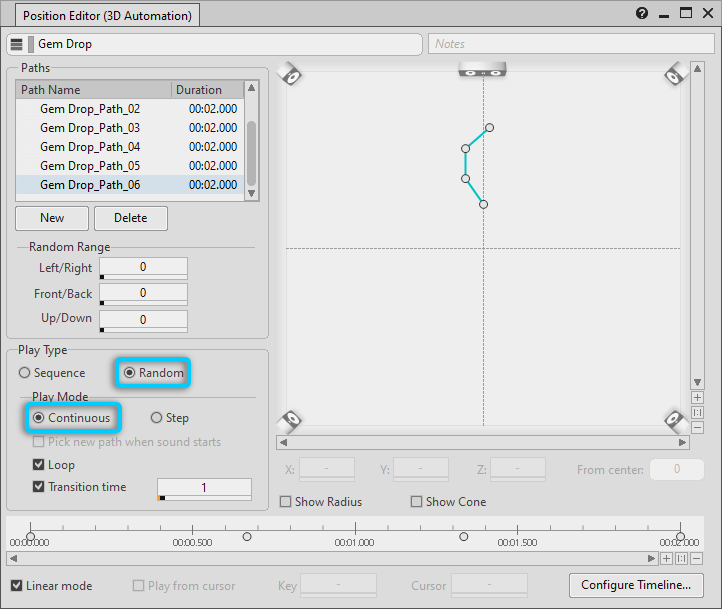
Now, each time a gem drop sound is played, one of the paths you created will be randomly selected.
-
Return to Cube and click to fire the ice gem. Listen for the position of the gem drops as they bounce. Click a few more times and listen for the variation in position.
-
To exit the game, press Esc, use the up and down arrow keys to select quit, and then press Enter.
Well done! In this module you learned to position the gem breaking sound even though the game doesn't provide its location. You started by configuring the sound for 3D spatialization. Then you created a path it could bounce along relative to the listener. And finally, for added realism, you created several more paths and configured it to randomly select a path each time it falls.
Up next, Module 10: Using Speaker Panning to give a sound a position relative to the listener.