Table of Contents
-
Modules
Now you'll create a path for the gems to bounce along when they hit the ground.
-
In the Property Editor, click the Edit the 3D Automation paths button.
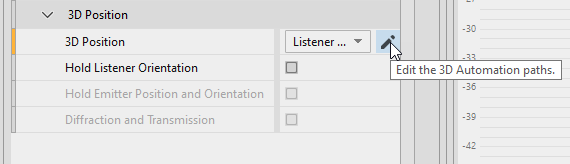
The Position Editor (3D Automation) opens.
This editor allows you to define paths your sounds can move along in 3D space without requiring any additional interaction with the game programmers. It’s a great tool for creating ambient spaces where birds fly overhead or an old building creaks and groans.
-
In the Paths group, click New.
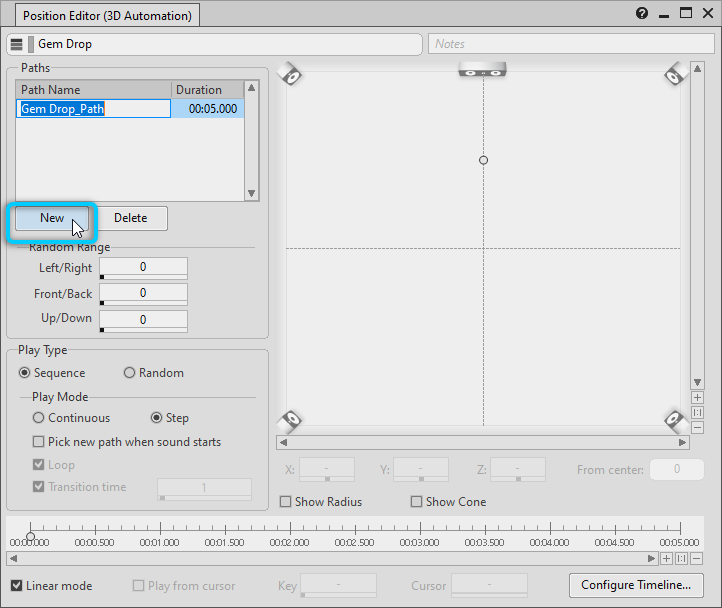
A dot appears in the graph view indicating where the sound will come from as it relates to the listener’s position, which is represented by the center of the square.
-
Drag the control point down, a little closer to the listener.
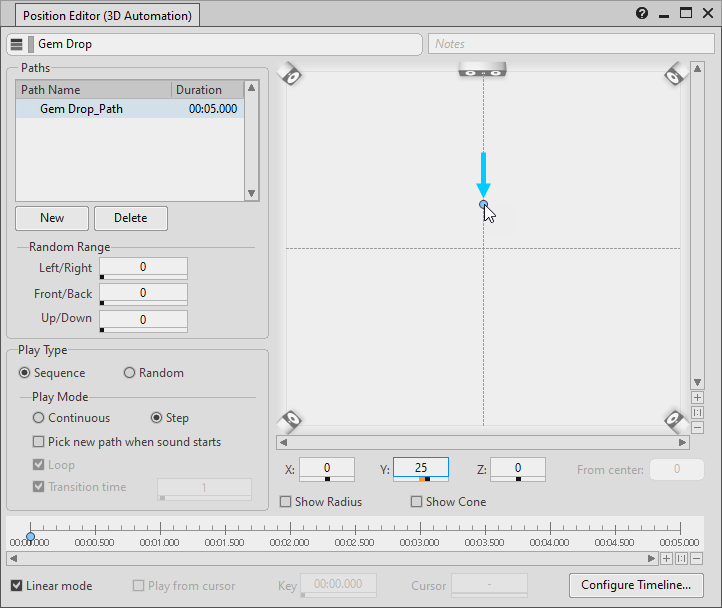
After the initial impact sound, the gem breaks apart and the sounds of the fragments might be heard from a slightly different position as they bounce on the ground.
-
Double-click on the graph to create additional control points and drag them to slightly different positions.
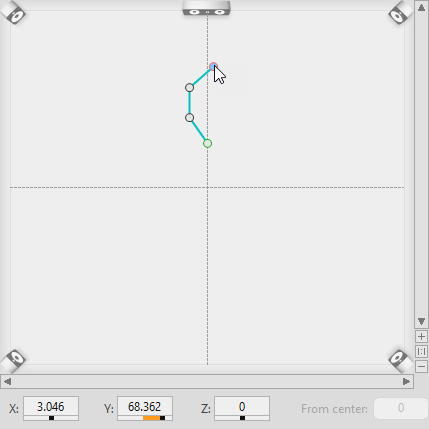
The dots are connected with a line, showing the path the gem will follow in 3D space.
You might have also noticed that at the bottom of the Position Editor, there is a timeline, and every time you added a point in the graph view, a corresponding point was created on the timeline. The timeline indicates how long it takes for the virtual object in the game to move from point to point to point. The gem drop sounds only last for a few seconds when they fall, so you'll adjust the length of the overall timeline to more closely match this.
-
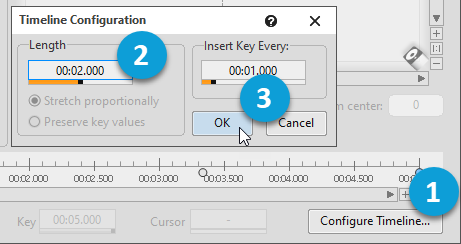
Click Configure Timeline and change the Length property to 2 seconds. Click OK.